
Apple · Filed Jun 30, 2026 · Published Oct 29, 2026

Apple's New Patent Filing Covers a Current-Time Marker for Smartwatch Notification Lists

Scrolling a long list on a tiny screen makes it easy to lose your place. Apple's filing fixes that with a small marker that pops up next to the rotating knob the moment you start turning it.
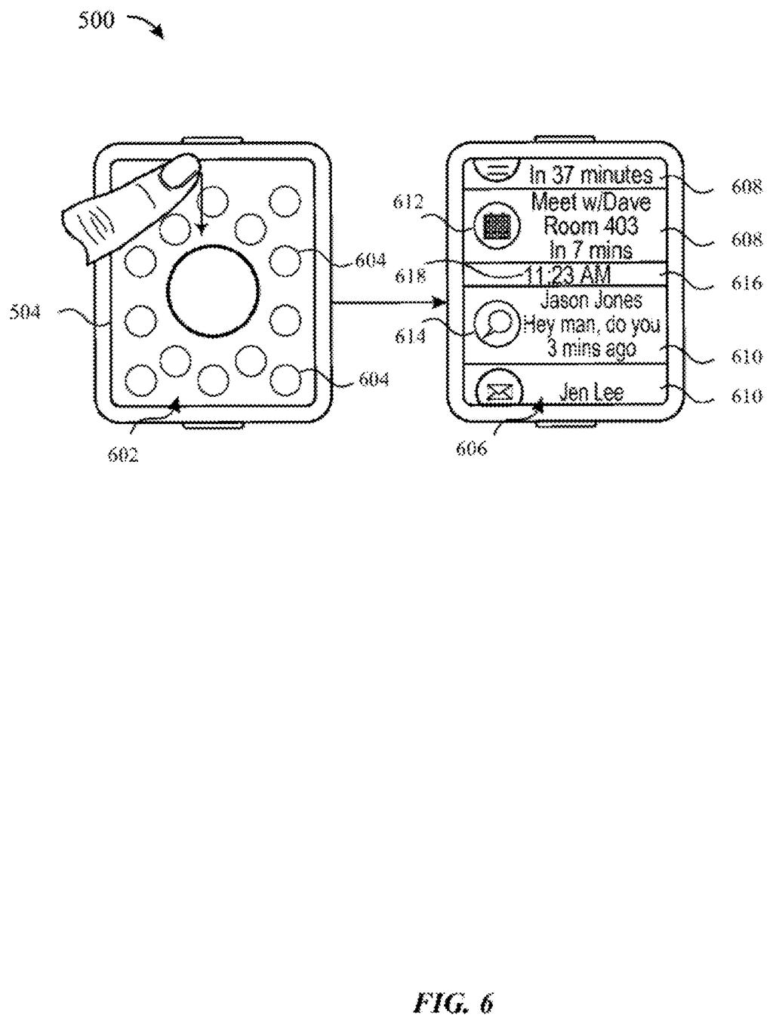
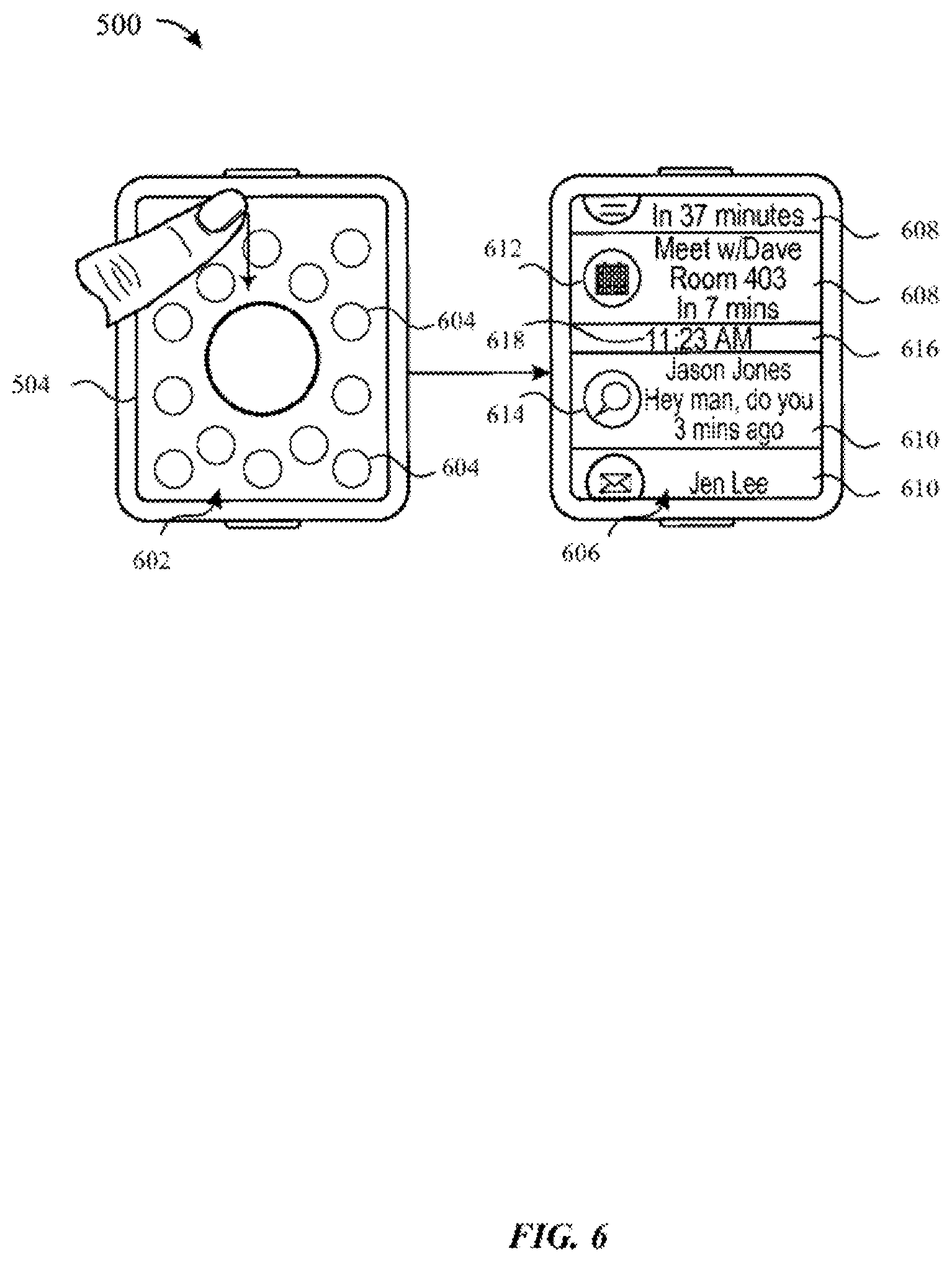
A smartwatch screen showing a notification list divided between upcoming calendar events and past text messages by a current-time line. Drawing from patent filing US 2026/0339485 A1.
A smartwatch screen showing a notification list divided between upcoming calendar events and past text messages by a current-time line.
See all 45 drawings from this filing ↓
Publication number US 2026/0339485 A1 US20260339485A1
Applicant Apple Inc.
Filing date Jun 30, 2026
Publication date Oct 29, 2026
Inventors Jonathan R. DASCOLA, Lawrence Y. YANG, Christopher Patrick FOSS, Gary Ian BUTCHER, Imran CHAUDHRI, Alan C. DYE, Craig M. FEDERIGHI, Jonathan P. IVE, Stephen O. LEMAY, Kevin LYNCH, Natalia MARIC, Curtis A. ROTHERT, Wan Si WAN, Jeff WILLIAMS, Christopher WILSON
US classification 715/765
Status when we published Waiting for an examiner (Jul 17, 2026)
Parent application is a Continuation of 16983941 (filed 2020-08-03)
Document 19 claims

What Apple's scroll marker actually does

Imagine you're at a crowded airport and your wrist has buzzed all morning: a text, a calendar reminder, a weather warning, a gate change. You pull up the list of alerts on a tiny screen and start turning the small knob on the side to scroll. On a screen that small, it's hard to tell how far down the list you are.

Apple's filing says that as soon as you turn the knob, a position marker appears right beside it, showing where the notifications on screen sit within the full list. Stop turning for a moment and the marker fades away, so it doesn't clutter the display.

The description also lays out the alert list itself: upcoming items sit above a line showing the current time, and past items sit below it, with alerts from different apps mixed together in one place.

From the filing · CLAIM 1
… a rotatable input mechanism that is physically rotatable relative to a housing of the electronic device and adjacent to the display …

Translation: This refers to a physical turning dial or crown on the side of the device casing.

How the marker follows the rotating knob

The claims describe a wearable device with a touch screen and a physically rotatable input mechanism (a knob that turns relative to the device's body) sitting next to the display. You open a screen tied to a set of content items, such as a list of notifications. Turning the knob scrolls that list by an amount that matches how far you rotated it.

The key detail is the scroll indicator. It was not on screen before you started turning, it appears while you scroll, and it is placed at a spot adjacent to the knob. Dependent claims say it can show your position in the list or what share of the list is currently visible, and that it can sit on top of the content. If you stop rotating for a set time, it fades out.

The filing describes several related touches:

  • Touching the screen while turning the knob zooms the view.
  • A firm press (the screen can sense how hard you push) brings up a button to clear the notifications.
  • Tapping a notification opens its full content, and location-based alerts can be pinned to the top.

The description adds that the line showing the current time can stick to the top or bottom edge of the screen as you scroll, and tapping it refreshes the list. Swiping a notification sideways dismisses it.

From the filing · THE ABSTRACT
… a future notification representing a future alert with a date and time after the current date and time, and a past notification representing a past alert with a date and time before the current date and time …

Translation: The list divides alerts into those happening later and those that already occurred.

What this means for your wrist alerts

The practical payoff is on your wrist. A screen that small shows only a few alerts at once, so a marker that tells you how deep into the list you are saves you from scrolling blind or overshooting past something you wanted. Because it appears only while you turn the knob, it takes up no screen space the rest of the time.

The filing is a continuation of an application first filed in 2015, which itself claims priority to 2014 provisional filings. Apple is still pursuing new claims in this family, and this round focuses on the knob and the marker instead of the past-and-future notification layout in the abstract. Think of it as polish on an alert list you may already use daily.

This is the 609th Apple filing in our Apple coverage since May, adding to work like room-based screen routing and app-picking voice control.

Editorial take

You would notice this the first time you scroll a long pile of alerts on a tiny screen and don't get lost. With only a few notifications visible at once, you can't otherwise tell whether you're near the top of three alerts or the middle of thirty.

Putting the marker beside the knob keeps your eyes close to the finger doing the turning. Fading it out after a pause keeps the screen clear when you're done, and since it only shows up when you start scrolling, it costs you nothing the rest of the day.

Expect it to feel routine in use. If it works, you won't think about it. If it were missing, you'd feel the gap every time you scrolled through a busy morning of messages.

Get our take in your Top Stories

Liked this breakdown? Add Patentlyze as a preferred source on Google, and our plain-English take shows up more often in your Top Stories the next time Apple patent news breaks.

There are more where this came from

We read every patent application Big Tech publishes and send you the ones worth knowing. Plain English, free, every week.

The drawings

45 drawing sheets from US 2026/0339485 A1 · click any drawing to enlarge

Hardware parts that run the phone and detect your touch, drawing sheet 1 from US 2026/0339485 A1
Sheet 1 Hardware parts that run the phone and detect your touch
Software layers that recognize screen taps and alert apps, drawing sheet 2 from US 2026/0339485 A1
Sheet 2 Software layers that recognize screen taps and alert apps
Touchscreen layout showing sensor areas and physical controls, drawing sheet 3 from US 2026/0339485 A1
Sheet 3 Touchscreen layout showing sensor areas and physical controls
Internal parts and memory programs for a computer, drawing sheet 4 from US 2026/0339485 A1
Sheet 4 Internal parts and memory programs for a computer
Home screen showing app icons and status indicators, drawing sheet 5 from US 2026/0339485 A1
Sheet 5 Home screen showing app icons and status indicators
Two finger gestures tracked across a separate touchpad, drawing sheet 6 from US 2026/0339485 A1
Sheet 6 Two finger gestures tracked across a separate touchpad
Smartwatch face showing the display and band attachment points, drawing sheet 7 from US 2026/0339485 A1
Sheet 7 Smartwatch face showing the display and band attachment points
Electronic parts and motion sensors inside the smartwatch, drawing sheet 8 from US 2026/0339485 A1
Sheet 8 Electronic parts and motion sensors inside the smartwatch
Show the other 37 sheets
Measuring press force using corner sensors under the screen, drawing sheet 9 from US 2026/0339485 A1
Sheet 9 Measuring press force using corner sensors under the screen
Combining sensor readings to calculate overall touch force, drawing sheet 10 from US 2026/0339485 A1
Sheet 10 Combining sensor readings to calculate overall touch force
Selecting an app icon with a light touch, drawing sheet 11 from US 2026/0339485 A1
Sheet 11 Selecting an app icon with a light touch
Pressing harder on an app to reveal a recent document, drawing sheet 12 from US 2026/0339485 A1
Sheet 12 Pressing harder on an app to reveal a recent document
Increasing pressure to preview more recent files, drawing sheet 13 from US 2026/0339485 A1
Sheet 13 Increasing pressure to preview more recent files
Pushing with maximum force to show all recent files, drawing sheet 14 from US 2026/0339485 A1
Sheet 14 Pushing with maximum force to show all recent files
Swiping down to see alerts split by the current time, drawing sheet 15 from US 2026/0339485 A1
Sheet 15 Swiping down to see alerts split by the current time
Tapping a notification to open the conversation directly, drawing sheet 16 from US 2026/0339485 A1
Sheet 16 Tapping a notification to open the conversation directly
Scrolling past and future alerts across a current time line, drawing sheet 17 from US 2026/0339485 A1
Sheet 17 Scrolling past and future alerts across a current time line
Swiping sideways across an alert to dismiss it, drawing sheet 18 from US 2026/0339485 A1
Sheet 18 Swiping sideways across an alert to dismiss it
Pressing firmly to clear all notifications at once, drawing sheet 19 from US 2026/0339485 A1
Sheet 19 Pressing firmly to clear all notifications at once
Tapping an alert to open its full conversation, drawing sheet 20 from US 2026/0339485 A1
Sheet 20 Tapping an alert to open its full conversation
Pulling down from the home screen to view notification lists, drawing sheet 21 from US 2026/0339485 A1
Sheet 21 Pulling down from the home screen to view notification lists
Paging between past notifications and upcoming events, drawing sheet 22 from US 2026/0339485 A1
Sheet 22 Paging between past notifications and upcoming events
Grouping missed messages, upcoming events, and daily activity, drawing sheet 23 from US 2026/0339485 A1
Sheet 23 Grouping missed messages, upcoming events, and daily activity
Glanceable cards for meetings, departure times, and flights, drawing sheet 24 from US 2026/0339485 A1
Sheet 24 Glanceable cards for meetings, departure times, and flights
Stepping through upcoming travel updates one card at a time, drawing sheet 25 from US 2026/0339485 A1
Sheet 25 Stepping through upcoming travel updates one card at a time
Tapping an unread badge opens your timeline, drawing sheet 26 from US 2026/0339485 A1
Sheet 26 Tapping an unread badge opens your timeline
Turning the crown zooms from apps into alerts, drawing sheet 27 from US 2026/0339485 A1
Sheet 27 Turning the crown zooms from apps into alerts
Listing notifications chronologically with timestamps down the side, drawing sheet 28 from US 2026/0339485 A1
Sheet 28 Listing notifications chronologically with timestamps down the side
Swiping up to scroll through expanded message cards, drawing sheet 29 from US 2026/0339485 A1
Sheet 29 Swiping up to scroll through expanded message cards
Grouping alerts by app or contact saves space, drawing sheet 30 from US 2026/0339485 A1
Sheet 30 Grouping alerts by app or contact saves space
Organizing mixed updates by person across different services, drawing sheet 31 from US 2026/0339485 A1
Sheet 31 Organizing mixed updates by person across different services
A time marker separates past and future alerts, drawing sheet 32 from US 2026/0339485 A1
Sheet 32 A time marker separates past and future alerts
Swiping horizontally to reveal upcoming notifications, drawing sheet 33 from US 2026/0339485 A1
Sheet 33 Swiping horizontally to reveal upcoming notifications
Showing your next scheduled alert with a sideways swipe, drawing sheet 34 from US 2026/0339485 A1
Sheet 34 Showing your next scheduled alert with a sideways swipe
Turning the digital crown to view your alerts, drawing sheet 35 from US 2026/0339485 A1
Sheet 35 Turning the digital crown to view your alerts
Watch components that coordinate scrolling and screen zoom, drawing sheet 36 from US 2026/0339485 A1
Sheet 36 Watch components that coordinate scrolling and screen zoom
Internal software units that open apps from alerts, drawing sheet 37 from US 2026/0339485 A1
Sheet 37 Internal software units that open apps from alerts
Touchscreen processing units that detect taps and launch apps, drawing sheet 38 from US 2026/0339485 A1
Sheet 38 Touchscreen processing units that detect taps and launch apps
Parts that switch between past and future alerts, drawing sheet 39 from US 2026/0339485 A1
Sheet 39 Parts that switch between past and future alerts
Hardware units that reveal notifications when turning the dial, drawing sheet 40 from US 2026/0339485 A1
Sheet 40 Hardware units that reveal notifications when turning the dial
Hardware components that process alerts and display notifications, drawing sheet 41 from US 2026/0339485 A1
Sheet 41 Hardware components that process alerts and display notifications
How your smartwatch organizes incoming alerts by date and time, drawing sheet 42 from US 2026/0339485 A1
Sheet 42 How your smartwatch organizes incoming alerts by date and time
Internal components that connect crown rotation to on-screen alerts, drawing sheet 43 from US 2026/0339485 A1
Sheet 43 Internal components that connect crown rotation to on-screen alerts
Swiping horizontally to switch between future and past notifications, drawing sheet 44 from US 2026/0339485 A1
Sheet 44 Swiping horizontally to switch between future and past notifications
Forwarding incoming app alerts to a connected companion device, drawing sheet 45 from US 2026/0339485 A1
Sheet 45 Forwarding incoming app alerts to a connected companion device
Browse all the drawings 45 drawing sheets
Patent filing page

Source. Full patent text and figures from the official USPTO publication PDF.
Reader comments

Be the first to weigh in

Start the discussion

Real name or a handle, either is fine. Comments are read by a person before they appear, so allow a little time. Keep it about the filing.