
Samsung · Filed Jun 5, 2026 · Published Oct 22, 2026

Samsung Files Patent for a Rollable Screen That Shows Saved Alerts at Full Size

Samsung describes a rollable screen that treats its own size as a control: pull it out far enough and a separate list of the alerts, messages and files you saved shows up.
A rollable smartphone extends upward from its compact frame to reveal a taller touchscreen. Drawing from patent filing US 2026/0329409 A1.
A rollable smartphone extends upward from its compact frame to reveal a taller touchscreen.
See all 37 drawings from this filing ↓
Publication number US 2026/0329409 A1 US20260329409A1
Applicant SAMSUNG ELECTRONICS CO., LTD.
Filing date Jun 5, 2026
Publication date Oct 22, 2026
Inventors Jaeyoun JEONG, Munhwi KIM, Taeyang SONG, Jinwan AN, Chaekyung LEE
US classification 715/780
Status when we published Waiting for an examiner (Aug 17, 2026)
Parent application is a Continuation of PCTKR2024015009 (filed 2024-10-02)
Document 20 claims

What Samsung's two-inbox rollable screen does

Imagine your screen is only partly unrolled and a dozen alerts pile up: a message from Jane, a file someone sent, a weather warning. You swipe the ones you care about off to the side and swipe away the junk. Later, when you pull the screen out further, the saved items are waiting in their own list.

That is the idea in this Samsung filing. The device has a screen that rolls in and out of its body. When the screen is partly out, you see a regular inbox of incoming items. When it reaches a larger preset size, which the filing says can be fully rolled out, you see a second box holding only the things you chose to keep.

So the size of the screen decides which list you're looking at. Tap a saved item and the matching app opens. Roll the screen back in, and anything new you hadn't looked at yet slides back into the regular inbox.

From the filing · CLAIM 1
… based on a user input being received on first information among the at least one piece of information, delete the first information from the information reception box and store the first information in an information storage box …

Translation: Tapping an alert removes it from the active list and moves it to a separate storage area.

How screen size decides which inbox you see

Claim 1 covers a device with a rollable display (a screen that slides or rolls in and out of the body), a processor and memory. The software works with two preset sizes: a first size and a larger second size. While the screen sits between them, it shows an information reception box, the filing's term for the ordinary list of incoming items such as notifications, messages, files, text, images or app content.

When you give an input on one item (the description uses a swipe), the device removes it from the reception box and puts it in an information storage box. Once the screen reaches the second size, the storage box appears with your saved item in it. The description says it can replace the inbox on screen or sit next to it. It also says the storage box holds saved items of any type, while the inbox can be split by type (notifications, images, files, messages).

The filing also describes several extras:

  • A right swipe on a saved item sends it back to the regular inbox, and the description says a left swipe deletes it.
  • Tapping or pressing a saved item opens the related app.
  • If a new item arrives while the storage box is showing, it appears there. If you roll the screen back in before looking at it, it moves to the inbox.
  • From the home screen, a one-finger swipe down from the top shows the inbox, and a two-finger swipe down shows the storage box.
From the filing · THE ABSTRACT
… display the information storage box including the first information based on the rollable display being withdrawn to have a size greater than or equal to the second size …

Translation: Pulling the screen out wider reveals the stored alerts at full size.

What a second inbox means for rollable screens

A screen that changes size creates a puzzle regular phones never face: what should appear when you suddenly have more room? This filing answers with a simple rule. Partly out, you get your everyday inbox. Pulled further out, you get a second list holding only what you chose to keep, so your to-do pile has a home and stops getting buried under new alerts.

For you, that would mean the act of unrolling the screen doubles as a way to switch from 'what just arrived' to 'what I still need to deal with.' The filing names no product and describes software behavior only, so it says little about when or whether a rollable device ships.

Samsung's 124th filing we've tracked since May in our display technology watchlist builds on earlier applications like sliding car screens and a side-angle 3D screen.

Editorial take

Claim 1 covers a rollable screen, two size thresholds, a regular list shown between them, and a saved list revealed at the larger size. Any user action on any item qualifies, so a tap, a swipe, or a long press all fall inside its boundary.

That openness matters. Any rollable device that lets you save an item and shows your saved collection at a bigger screen size would sit inside this claim, regardless of how the saving works or what kind of content is involved.

The one firm limit is the hardware itself: a fixed-screen phone falls outside the wording entirely. Inside the rollable category, though, the claim is broad enough to cover a wide range of everyday interactions, which gives it real weight as that product type grows.

Get our take in your Top Stories

Liked this breakdown? Add Patentlyze as a preferred source on Google, and our plain-English take shows up more often in your Top Stories the next time Samsung patent news breaks.

There are more where this came from

We read every patent application Big Tech publishes and send you the ones worth knowing. Plain English, free, every week.

The drawings

37 drawing sheets from US 2026/0329409 A1 · click any drawing to enlarge

Internal parts that run the phone and connect to networks, drawing sheet 1 from US 2026/0329409 A1
Sheet 1 Internal parts that run the phone and connect to networks
Front view of the phone completely closed, drawing sheet 2 from US 2026/0329409 A1
Sheet 2 Front view of the phone completely closed
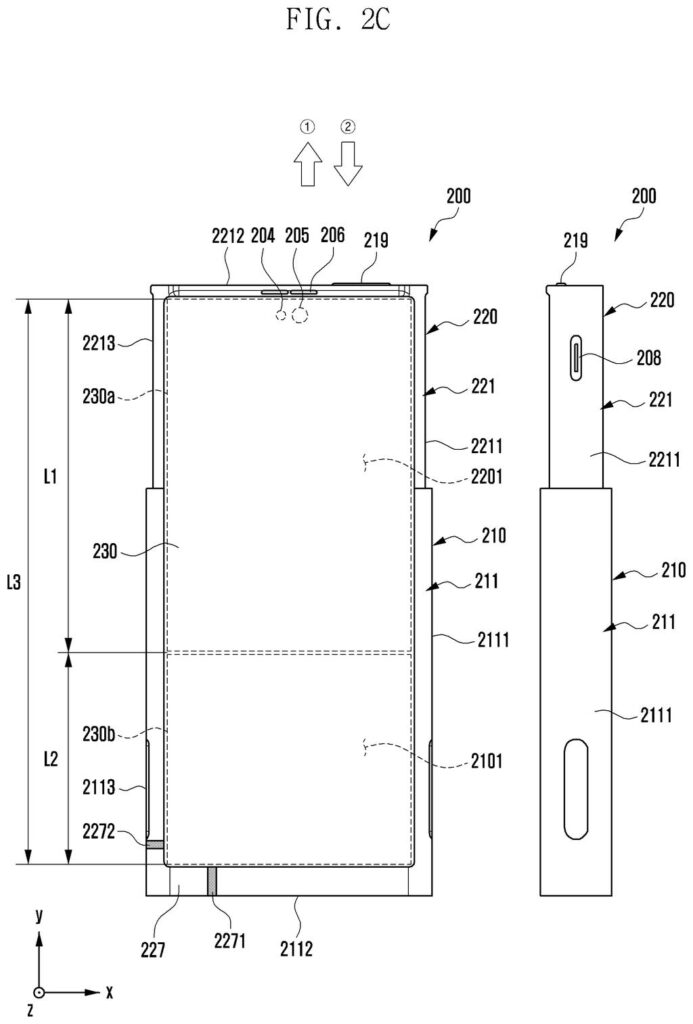
How the screen unrolls to two different heights, drawing sheet 3 from US 2026/0329409 A1
Sheet 3 How the screen unrolls to two different heights
Front and side details of the extending frame, drawing sheet 4 from US 2026/0329409 A1
Sheet 4 Front and side details of the extending frame
Basic electronic components that control the rollable screen, drawing sheet 5 from US 2026/0329409 A1
Sheet 5 Basic electronic components that control the rollable screen
Choosing whether to save or delete an incoming notification, drawing sheet 6 from US 2026/0329409 A1
Sheet 6 Choosing whether to save or delete an incoming notification
Swiping incoming alerts to save or dismiss them, drawing sheet 7 from US 2026/0329409 A1
Sheet 7 Swiping incoming alerts to save or dismiss them
Unrolling the display to view saved alerts, drawing sheet 8 from US 2026/0329409 A1
Sheet 8 Unrolling the display to view saved alerts
Show the other 29 sheets
Two stacked alert cards on the extended screen, drawing sheet 9 from US 2026/0329409 A1
Sheet 9 Two stacked alert cards on the extended screen
Pulling down to separate stacked alerts on the tall display, drawing sheet 10 from US 2026/0329409 A1
Sheet 10 Pulling down to separate stacked alerts on the tall display
Remaining alerts shown after rolling the screen back down, drawing sheet 11 from US 2026/0329409 A1
Sheet 11 Remaining alerts shown after rolling the screen back down
Tapping a notification card on the fully unrolled screen, drawing sheet 12 from US 2026/0329409 A1
Sheet 12 Tapping a notification card on the fully unrolled screen
Opening the full app after selecting its notification, drawing sheet 13 from US 2026/0329409 A1
Sheet 13 Opening the full app after selecting its notification
Swiping down from the home screen to view notifications, drawing sheet 14 from US 2026/0329409 A1
Sheet 14 Swiping down from the home screen to view notifications
Swiping individual alert cards left or right to organize them, drawing sheet 15 from US 2026/0329409 A1
Sheet 15 Swiping individual alert cards left or right to organize them
Dividing saved notifications from incoming ones with a swipe, drawing sheet 16 from US 2026/0329409 A1
Sheet 16 Dividing saved notifications from incoming ones with a swipe
Swiping down to see your saved items, drawing sheet 17 from US 2026/0329409 A1
Sheet 17 Swiping down to see your saved items
Opening an app from your saved alerts, drawing sheet 18 from US 2026/0329409 A1
Sheet 18 Opening an app from your saved alerts
Launching the full application from a stored alert, drawing sheet 19 from US 2026/0329409 A1
Sheet 19 Launching the full application from a stored alert
Pulling down with two fingers while inside an active app, drawing sheet 20 from US 2026/0329409 A1
Sheet 20 Pulling down with two fingers while inside an active app
Selecting another saved alert from the overlay menu, drawing sheet 21 from US 2026/0329409 A1
Sheet 21 Selecting another saved alert from the overlay menu
Switching directly to a second app from the saved alert, drawing sheet 22 from US 2026/0329409 A1
Sheet 22 Switching directly to a second app from the saved alert
Expanding the rollable screen upward to reveal more alerts, drawing sheet 23 from US 2026/0329409 A1
Sheet 23 Expanding the rollable screen upward to reveal more alerts
Dragging an incoming alert into the permanent storage box, drawing sheet 24 from US 2026/0329409 A1
Sheet 24 Dragging an incoming alert into the permanent storage box
Swiping down opens your saved alerts on the expanded screen, drawing sheet 25 from US 2026/0329409 A1
Sheet 25 Swiping down opens your saved alerts on the expanded screen
Tapping a saved notification while the screen is fully unrolled, drawing sheet 26 from US 2026/0329409 A1
Sheet 26 Tapping a saved notification while the screen is fully unrolled
Swiping down to view alerts over an open app, drawing sheet 27 from US 2026/0329409 A1
Sheet 27 Swiping down to view alerts over an open app
Selecting another stored alert while using a full-screen app, drawing sheet 28 from US 2026/0329409 A1
Sheet 28 Selecting another stored alert while using a full-screen app
Launching the selected app across the unrolled display, drawing sheet 29 from US 2026/0329409 A1
Sheet 29 Launching the selected app across the unrolled display
Daily notifications and system alerts gathered in a single list, drawing sheet 30 from US 2026/0329409 A1
Sheet 30 Daily notifications and system alerts gathered in a single list
Photos organized inside an alert panel on the screen, drawing sheet 31 from US 2026/0329409 A1
Sheet 31 Photos organized inside an alert panel on the screen
Browsing saved files through the rolled-in display view, drawing sheet 32 from US 2026/0329409 A1
Sheet 32 Browsing saved files through the rolled-in display view
A message list filling the compact rollable screen, drawing sheet 33 from US 2026/0329409 A1
Sheet 33 A message list filling the compact rollable screen
Swiping across files or messages to save them, drawing sheet 34 from US 2026/0329409 A1
Sheet 34 Swiping across files or messages to save them
Pulling down with two fingers to show saved items, drawing sheet 35 from US 2026/0329409 A1
Sheet 35 Pulling down with two fingers to show saved items
Expanding the display reveals all stored alerts at once, drawing sheet 36 from US 2026/0329409 A1
Sheet 36 Expanding the display reveals all stored alerts at once
How the phone saves alerts and displays them fully unrolled, drawing sheet 37 from US 2026/0329409 A1
Sheet 37 How the phone saves alerts and displays them fully unrolled
Browse all the drawings 37 drawing sheets
Patent filing page

Source. Full patent text and figures from the official USPTO publication PDF.
Reader comments

Be the first to weigh in

Start the discussion

Real name or a handle, either is fine. Comments are read by a person before they appear, so allow a little time. Keep it about the filing.