
Apple · Filed Jul 8, 2026 · Published Nov 5, 2026

Apple Files Patent for Camera Zoom Buttons That Separate Lens Zoom From Digital Zoom

Apple's filing splits your camera's zoom bar into one button per real lens and a separate button for digital zoom, so the two kinds of zoom stay apart.
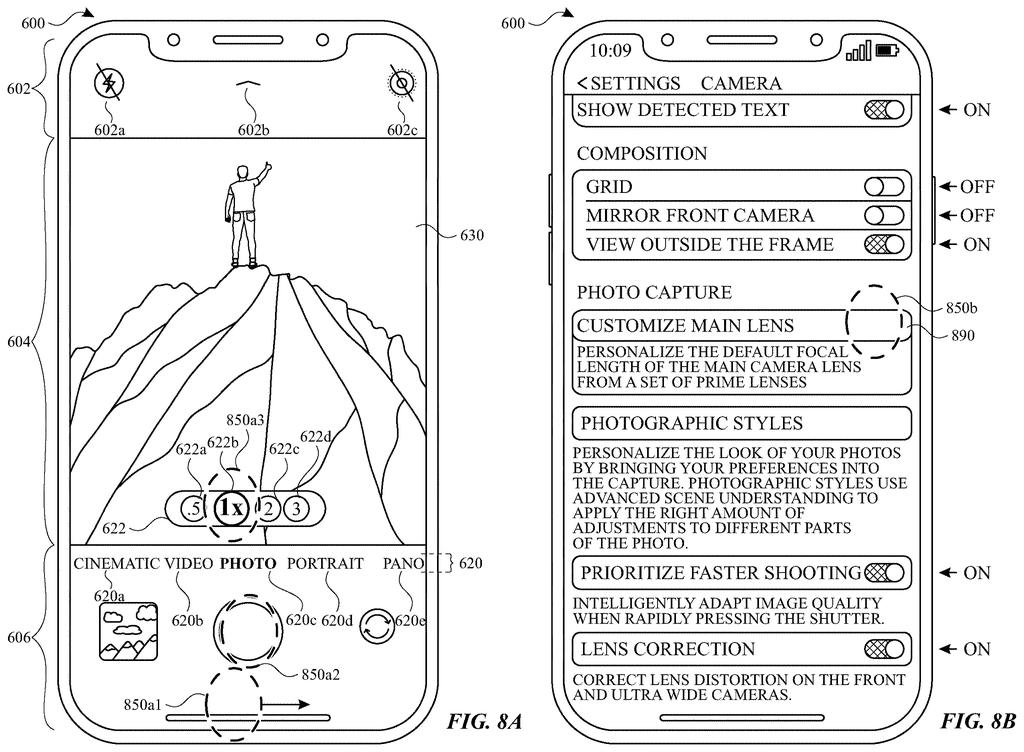
A phone camera screen displays selectable zoom buttons that let users switch focal lengths and control how images are captured. Drawing from patent filing US 2026/0352942 A1.
A phone camera screen displays selectable zoom buttons that let users switch focal lengths and control how images are captured.
See all 37 drawings from this filing ↓
Publication number US 2026/0352942 A1 US20260352942A1
Applicant Apple Inc.
Filing date Jul 8, 2026
Publication date Nov 5, 2026
Inventors Johnnie B. MANZARI, Daniel T. PRESTON, Andre SOUZA DOS SANTOS, William A. SORRENTINO III, Brandon J. COREY, Nicholas D. LUPINETTI
US classification 348/333.02
Status when we published Waiting for an examiner (Jul 28, 2026)
Parent application is a Continuation of 18204881 (filed 2023-06-01)
Document 17 claims

What Apple's per-lens zoom buttons actually do

Imagine you're at your kid's soccer game, thumb hovering over the zoom buttons on your phone's camera. Some of those zoom settings come from actual lenses on the back of the phone. Others are the phone cropping in digitally on a picture it already took.

Apple's patent application sorts those out on the screen. When you open the camera, you get a row of buttons: one for each lens at its natural zoom, and a separate one for digital zoom, which can draw on any of the cameras. Drag your finger and you can slide to any zoom setting across that whole range.

The filing also says digital zoom shots should come out at a resolution similar to the lens shots. And when the light gets dim and the phone switches to a low-light mode, it can move you off digital zoom and onto a real lens.

From the filing · THE ABSTRACT
The present disclosure generally relates to camera management. In some embodiments, methods, computer systems, user interface, and techniques are provided for managing the resolution of media, managing zoom controls for capturing media …

Translation: Apple describes a system for controlling how users interact with camera zoom settings.

How the camera screen splits lens and digital zoom

The claims cover a camera screen for a phone or tablet that has at least two fixed focal length cameras (lenses with one set magnification that can't zoom on their own). When you switch into a camera mode, the screen shows three kinds of controls:

  • A button for the first camera's native zoom level (the zoom it delivers with no extra image processing).
  • A button for the second camera's native zoom level, which is a different one.
  • A button for digital zoom, which enlarges the picture using one or more of the cameras.

The dependent claims add detail. Dragging a finger moves you through a range of zoom levels that spans all three buttons. Digital zoom shots come out at a resolution similar to the lens shots, by expanding frames the cameras captured. In some camera modes the digital button starts out selected, and in others it doesn't. One mode can show only the digital button, then reveal the lens buttons when you tap, while hiding the filter controls. These buttons are also the only controls that change the zoom level.

Low light gets its own rule. If digital zoom is selected and the phone moves into a low-light mode (because you tapped for it, or because the surrounding light falls below a threshold), the phone switches to one of the lenses' native zoom levels.

The description also covers choosing between 12 and 24 megapixel photos and video stabilization settings, but the claims here center on the zoom controls.

From the filing · CLAIM 1
a first selectable control that, when selected, causes the computer system to be configured to capture media with a first native zoom level of the first fixed focal length camera …

Translation: One button activates the true optical zoom of a specific camera lens.

Why a tidier zoom bar matters on your phone

Phones now carry several rear cameras, and the zoom bar is where you choose among them. A layout that marks real lens settings apart from digital zoom, and gives you a quick way to slide between them, could make that choice faster with fewer taps. The filing says its goal is less wasted time and less wasted battery from extra button presses.

Because the claims describe a camera screen and not a new lens or sensor, any change would arrive as a software update to the camera app. The filing names iPhone and iPad as example devices, but a patent application is not a product, and nothing here says whether this layout will ever ship.

Apple's 625th filing in our Apple coverage since May adds to a run that includes a camera shake fix and app data privacy controls.

Editorial take

Every camera screen trades space for clarity, and this one spends a little of each. A button for every lens plus a separate digital button puts more targets in a narrow strip under your thumb, and a crowded strip invites mistaps.

The bigger cost sits in the low-light rule. If you're zoomed in digitally and the phone drops into night mode, the claims have it move you to a real lens setting, so your framing can change without you asking. A real lens is a plausible fit for dim scenes, and most people would take a slightly different crop over a muddy photo, but it is a surprise worth knowing about.

Overall the bargain reads as fair. This is routine interface housekeeping, and the costs are small next to the benefit of knowing which kind of zoom you're choosing.

Get our take in your Top Stories

Liked this breakdown? Add Patentlyze as a preferred source on Google, and our plain-English take shows up more often in your Top Stories the next time Apple patent news breaks.

There are more where this came from

We read every patent application Big Tech publishes and send you the ones worth knowing. Plain English, free, every week.

The drawings

37 drawing sheets from US 2026/0352942 A1 · click any drawing to enlarge

Internal parts and programs inside a touchscreen phone, drawing sheet 1 from US 2026/0352942 A1
Sheet 1 Internal parts and programs inside a touchscreen phone
Software parts that detect and sort touchscreen taps, drawing sheet 2 from US 2026/0352942 A1
Sheet 2 Software parts that detect and sort touchscreen taps
Exterior sensors, buttons, and touch screen on a phone, drawing sheet 3 from US 2026/0352942 A1
Sheet 3 Exterior sensors, buttons, and touch screen on a phone
Hardware parts and software built for a computer, drawing sheet 4 from US 2026/0352942 A1
Sheet 4 Hardware parts and software built for a computer
App home screen on a touch device, drawing sheet 5 from US 2026/0352942 A1
Sheet 5 App home screen on a touch device
Moving fingers across a trackpad to control a display, drawing sheet 6 from US 2026/0352942 A1
Sheet 6 Moving fingers across a trackpad to control a display
Smartwatch face showing screen and side buttons, drawing sheet 7 from US 2026/0352942 A1
Sheet 7 Smartwatch face showing screen and side buttons
Watch components that connect motion sensors and chips, drawing sheet 8 from US 2026/0352942 A1
Sheet 8 Watch components that connect motion sensors and chips
Show the other 29 sheets
Setting a default photo resolution and opening the camera viewfinder, drawing sheet 9 from US 2026/0352942 A1
Sheet 9 Setting a default photo resolution and opening the camera viewfinder
Reviewing a high-resolution shot and framing another with flash enabled, drawing sheet 10 from US 2026/0352942 A1
Sheet 10 Reviewing a high-resolution shot and framing another with flash enabled
Reviewing photo details and framing a dark shot, drawing sheet 11 from US 2026/0352942 A1
Sheet 11 Reviewing photo details and framing a dark shot
Switching from standby to recording video at standard resolution, drawing sheet 12 from US 2026/0352942 A1
Sheet 12 Switching from standby to recording video at standard resolution
Inspecting video details and toggling RAW photo options in settings, drawing sheet 13 from US 2026/0352942 A1
Sheet 13 Inspecting video details and toggling RAW photo options in settings
Enabling high-resolution RAW capture inside the camera format menu, drawing sheet 14 from US 2026/0352942 A1
Sheet 14 Enabling high-resolution RAW capture inside the camera format menu
How the phone automatically picks photo resolution based on lighting, drawing sheet 15 from US 2026/0352942 A1
Sheet 15 How the phone automatically picks photo resolution based on lighting
Selecting camera zoom buttons and entering main lens setup settings, drawing sheet 16 from US 2026/0352942 A1
Sheet 16 Selecting camera zoom buttons and entering main lens setup settings
Choosing a simulated focal length for the main camera lens, drawing sheet 17 from US 2026/0352942 A1
Sheet 17 Choosing a simulated focal length for the main camera lens
Setting a custom focal length as your primary camera default, drawing sheet 18 from US 2026/0352942 A1
Sheet 18 Setting a custom focal length as your primary camera default
Returning to the viewfinder with your chosen lens settings applied, drawing sheet 19 from US 2026/0352942 A1
Sheet 19 Returning to the viewfinder with your chosen lens settings applied
Tapping the main lens button to cycle focal length presets, drawing sheet 20 from US 2026/0352942 A1
Sheet 20 Tapping the main lens button to cycle focal length presets
Swiping up on a zoom button to reveal more options, drawing sheet 21 from US 2026/0352942 A1
Sheet 21 Swiping up on a zoom button to reveal more options
Dialing a precise zoom level across physical camera ranges, drawing sheet 22 from US 2026/0352942 A1
Sheet 22 Dialing a precise zoom level across physical camera ranges
Customizing the zoom bar with a digital zoom preset, drawing sheet 23 from US 2026/0352942 A1
Sheet 23 Customizing the zoom bar with a digital zoom preset
Switching between macro closeups and portrait shooting modes, drawing sheet 24 from US 2026/0352942 A1
Sheet 24 Switching between macro closeups and portrait shooting modes
Moving to portrait mode keeps your zoom setting, drawing sheet 25 from US 2026/0352942 A1
Sheet 25 Moving to portrait mode keeps your zoom setting
Swiping opens exposure dials beside camera controls, drawing sheet 26 from US 2026/0352942 A1
Sheet 26 Swiping opens exposure dials beside camera controls
Photo details show which camera lens took each shot, drawing sheet 27 from US 2026/0352942 A1
Sheet 27 Photo details show which camera lens took each shot
How the phone separates optical zoom from digital crop, drawing sheet 28 from US 2026/0352942 A1
Sheet 28 How the phone separates optical zoom from digital crop
How tapping a zoom button sets the lens distance, drawing sheet 29 from US 2026/0352942 A1
Sheet 29 How tapping a zoom button sets the lens distance
Video settings let you turn on extra stabilization, drawing sheet 30 from US 2026/0352942 A1
Sheet 30 Video settings let you turn on extra stabilization
Enabling stabilization adds a walking icon on screen, drawing sheet 31 from US 2026/0352942 A1
Sheet 31 Enabling stabilization adds a walking icon on screen
Choosing between normal and ultra stabilization levels, drawing sheet 32 from US 2026/0352942 A1
Sheet 32 Choosing between normal and ultra stabilization levels
Choosing high stabilization while recording video, drawing sheet 33 from US 2026/0352942 A1
Sheet 33 Choosing high stabilization while recording video
Switching video stabilization to ultra mode, drawing sheet 34 from US 2026/0352942 A1
Sheet 34 Switching video stabilization to ultra mode
Turning camera stabilization off entirely, drawing sheet 35 from US 2026/0352942 A1
Sheet 35 Turning camera stabilization off entirely
Returning to standard photo mode with basic zoom options, drawing sheet 36 from US 2026/0352942 A1
Sheet 36 Returning to standard photo mode with basic zoom options
How the phone adjusts framing when changing stabilization levels, drawing sheet 37 from US 2026/0352942 A1
Sheet 37 How the phone adjusts framing when changing stabilization levels
Browse all the drawings 37 drawing sheets
Patent filing page

Source. Full patent text and figures from the official USPTO publication PDF.
Reader comments

Be the first to weigh in

Start the discussion

Real name or a handle, either is fine. Comments are read by a person before they appear, so allow a little time. Keep it about the filing.