
Adobe Files Patent for a QR Code That Tells Your Phone Which Photos to Send
Adobe's latest patent application turns the QR code on your screen into a set of instructions. Scan it with your phone and you see only the photos your design needs, such as six pictures of Dubai for a six-slot poster.
What Adobe's context-aware QR code actually does
You're building a travel poster on your laptop. The word DUBAI runs across the top in big letters, each letter needs its own photo, and one more fills the background. That's six pictures, and they're somewhere in your phone's camera roll, mixed in with everything else you've ever shot.
Adobe's patent application describes a shortcut. Your design app shows a QR code that carries notes about the project: the place is Dubai, and you need six photos. Scan it with your phone and the gallery shows only Dubai pictures, and it stops you at six picks.
Tap your choices and they travel to a temporary online folder. Your laptop notices them arriving and places each photo in its spot, so you skip the emailing, the scrolling and the guesswork.
… automatically filtering a set of digital content items stored on the first computing device according to the context parameters extracted from the scannable code corresponding to the digital design editing workflow …
Translation: Your phone sorts through your pictures on its own based on the rules hidden inside the code.
How a scanned QR code filters your phone's photos
When you ask the design app to import from a phone, it reads its own project and pulls out context parameters (plain notes about what the project needs). The filing describes three kinds: how the imported item will be used (placed into a layout slot or opened as a separate file), what sort of item it is (a file type, a place, a person or a tag), and details about the app itself, such as web or desktop version.
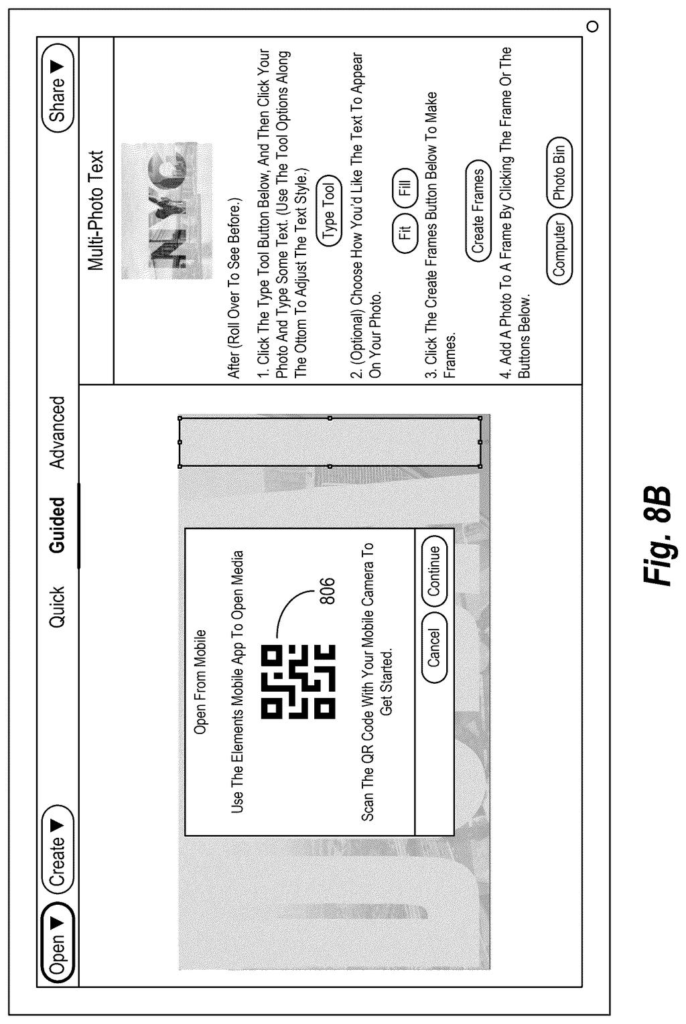
The app bundles these into a unique context ID (a label that maps back to the project) and pairs it with a short-lived web link to a temporary cloud folder. Both go into the QR code. Your computer then keeps checking that folder, a habit called polling, for new files.
After you scan the code with your phone camera:
- The phone opens an app and filters its gallery using the notes in the code, such as location, a face, or a tag.
- A media count caps how many items you can pick, based on the open spots in the design.
- Your picks upload one by one, bracketed by two small marker files (the filing calls them sof.json and eof.json) that mark the start and the end.
When the end marker shows up, your computer stops checking, verifies the count and drops the photos into the design. If you choose nothing from the filtered set, the phone can show everything unfiltered, so you're never stuck.
… embedding data of digital content items within a digital design editing workflow via a context-aware QR code …
Translation: The system links specific project needs directly to a smart QR code.
Why phone-to-canvas imports could get less tedious
If you've ever emailed yourself a photo just to get it into a design on your laptop, this is the chore Adobe is aiming at. The filing describes a design app that knows it has six empty slots for Dubai pictures, tells your phone, and lets you pick only those six from a gallery already filtered to Dubai. You skip hunting through folders, and it gets harder to upload a whole album you never needed.
The patent office has approved this application, and once Adobe pays the final fee it should be issued as a granted patent. The filing says the idea could be built into Adobe apps such as Creative Cloud, Acrobat, Document Cloud and Express, though it doesn't point to a specific product release.
That makes this Adobe's 240th filing in our Adobe coverage since May, adding to work like keeping AI people stable on camera and fixing blurry photos faster.
Nothing in this filing needs new hardware. A phone camera, a web link, a temporary cloud folder and a design app that already knows what is on its own canvas cover the whole thing. That puts it close to a shippable feature.
The hard part sits on the phone side. The phone app has to read the code, open itself and filter your camera roll by place, person or tag, which depends on how well your photos are labeled. If your Dubai shots carry no location data, the filter has little to find, though the filing does let you fall back to browsing everything.
The shortest route to a product is a feature inside an existing Adobe app, paired with its phone companion. Expect a small convenience you'd notice mostly when it's missing. One detail deserves a second look: the upload folder is described as a public, short-lived link, so how long it stays open will matter to anyone moving private photos.
Get our take in your Top Stories
Liked this breakdown? Add Patentlyze as a preferred source on Google, and our plain-English take shows up more often in your Top Stories the next time Adobe patent news breaks.
There are more where this came from
We read every patent application Big Tech publishes and send you the ones worth knowing. Plain English, free, every week.
The drawings
16 drawing sheets from US 2026/0339971 A1 · click any drawing to enlarge


Show the other 8 sheets


Want this weekly breakdown for a company we don't cover? Patentlyze Pro →
Be the first to weigh in