Get the newsletter
Apple · AI / ML · Filed Apr 30, 2026 · USPTO published Nov 19, 2026 · This week's release

Apple Patents an Image Maker That Lets You Pick Which AI Draws Your Picture

Apple's patent application describes an image-making app where you choose which AI draws your picture, and the choices can come from different companies. It also adds a warning screen for some kinds of models.
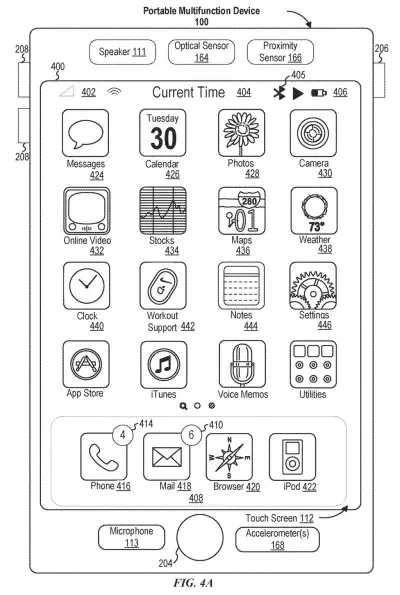
A phone home screen with app icons and status indicators, serving as the interface where users can select software. Drawing from patent filing US 2026/0367759 A1.
A phone home screen with app icons and status indicators, serving as the interface where users can select software.All 47 drawings ↓
Publication number
US 2026/0367759 A1(US20260367759A1)
Applicant
Apple Inc.
Filed · Published
Apr 30, 2026 · Nov 19, 2026
Inventors
Grant R. PAUL
Status when we published
Waiting for an examiner
Document
23 claims
US classification
715/202
Parent application
Claims priority from a provisional application 63808082 (filed May 19, 2025)

What Apple's pick-your-own-AI image app does

Ever typed the same request into two different AI image apps just to see which one draws it better? You end up bouncing between apps, copying and pasting, and losing track of which picture came from where.

Apple's patent application describes one image-making app on your device where you pick the AI model yourself. You type a description, choose a model, and the app draws it with that one. Pick another model, and the same description can come back in a different look. The filing says the choices can come from different companies, and it covers an Apple model sitting next to one you already chose for other AI features on your phone.

There are extra touches too: suggested phrases that change depending on the model, an emoji style that offers emoji you used before and opens an emoji keyboard, and a warning screen before you use certain kinds of models.

From the filing · THE ABSTRACT
The electronic device optionally further allows for an automatically-generated visual media item to be re-sized in accordance with a drag input.

Translation: You can stretch or shrink the generated images by dragging them with your finger or mouse.

How the app switches between AI image models

The main claim covers an image-generation app that takes a text description (a prompt) and then checks which machine learning model (the trained AI program that actually makes the image) you picked. If you chose a first model, the app generates the image with it. If you chose a second model, it uses that one instead.

The other claims add a lot of detail about how the picking works:

  • The model choices can be tied to different providers, with at least three provider options shown as selectable items.
  • One model can come from the company that maintains the device's operating system, while another is an outside model you already selected for other AI features on the device.
  • For some types of model, the app shows an alert before generating. For other types, it skips the alert.
  • If your prompt points to a particular visual style, the app can notify you about another model available for that style, and can name its provider.
  • An emoji style suggests emoji you used before and switches the keyboard to emoji mode.
  • An editing panel lets you customize how the subject looks, using preset traits or typed details, page through different reference visuals, and reset to the starting point.

The description also covers dragging an image to resize it after it is made. The model can produce one size, such as a square, and the device then stretches it, which saves computing work. It also describes giving the same prompt a different look depending on which app it came from. Those are variations the filing describes, separate from the claims above.

Why a model picker matters for iPhone images

If something like this reached a phone, you could try one description with several AI image makers without leaving the app, and keep the look you like best. The warning screen and the style-matching suggestions point at a practical concern: people may not always know whose AI is drawing their picture.

For Apple, the filing shows a design where its own model and outside models sit side by side in the same menu, with you making the call. The text says this saves time and inputs and cuts down on mistakes. It is a patent application, so it describes a design, not a product on sale.

This is the seventh Apple filing we've tracked in Enterprise AI since June, building on ideas like pairing tasks with AI models and on-device AI calling other apps.

Source: US 2026/0367759 A1 at the USPTO (PDF). Full patent text and figures are in the official publication.

Get our take in your Top Stories

Liked this breakdown? Add Patentlyze as a preferred source on Google, and our plain-English take shows up more often in your Top Stories the next time Apple patent news breaks.

There are more where this came from

We read every patent application Big Tech publishes and send you the ones worth knowing. Plain English, free, every week.

The drawings · 47 sheets

47 drawing sheets from US 2026/0367759 A1 · click any drawing to enlarge

Hardware parts and software built into the phone, drawing sheet 1 from US 2026/0367759 A1
Sheet 1 Hardware parts and software built into the phone
How apps detect and respond to your screen taps, drawing sheet 2 from US 2026/0367759 A1
Sheet 2 How apps detect and respond to your screen taps
Finger and stylus controls on a touchscreen handset, drawing sheet 3 from US 2026/0367759 A1
Sheet 3 Finger and stylus controls on a touchscreen handset
Computer hardware paired with separate mouse and screen controls, drawing sheet 4 from US 2026/0367759 A1
Sheet 4 Computer hardware paired with separate mouse and screen controls
Basic steps for collecting data and running a task, drawing sheet 5 from US 2026/0367759 A1
Sheet 5 Basic steps for collecting data and running a task
Software layers that let apps talk to the system, drawing sheet 6 from US 2026/0367759 A1
Sheet 6 Software layers that let apps talk to the system
Messages sent between an app and core system features, drawing sheet 7 from US 2026/0367759 A1
Sheet 7 Messages sent between an app and core system features
Home screen layout with app icons and a dock, drawing sheet 8 from US 2026/0367759 A1
Sheet 8 Home screen layout with app icons and a dock
Show the other 39 sheets
Moving fingers across a trackpad to control a separate screen, drawing sheet 9 from US 2026/0367759 A1
Sheet 9 Moving fingers across a trackpad to control a separate screen
Front view of a wearable device screen and buttons, drawing sheet 10 from US 2026/0367759 A1
Sheet 10 Front view of a wearable device screen and buttons
Electronic hardware that connects sensors, inputs, and memory, drawing sheet 11 from US 2026/0367759 A1
Sheet 11 Electronic hardware that connects sensors, inputs, and memory
Corner sensors measuring pressure from multiple fingers at once, drawing sheet 12 from US 2026/0367759 A1
Sheet 12 Corner sensors measuring pressure from multiple fingers at once
Calculating how hard each individual fingertip presses down, drawing sheet 13 from US 2026/0367759 A1
Sheet 13 Calculating how hard each individual fingertip presses down
Resting a finger on a trackpad to target an app, drawing sheet 14 from US 2026/0367759 A1
Sheet 14 Resting a finger on a trackpad to target an app
Pressing down slightly harder to reveal a recent file, drawing sheet 15 from US 2026/0367759 A1
Sheet 15 Pressing down slightly harder to reveal a recent file
Pushing firmly on the trackpad to summon more documents, drawing sheet 16 from US 2026/0367759 A1
Sheet 16 Pushing firmly on the trackpad to summon more documents
Opening recent files by pressing hard on an app icon, drawing sheet 17 from US 2026/0367759 A1
Sheet 17 Opening recent files by pressing hard on an app icon
Tapping suggestion bubbles to build a scene for the AI, drawing sheet 18 from US 2026/0367759 A1
Sheet 18 Tapping suggestion bubbles to build a scene for the AI
Choosing an AI model and style to redraw pictures, drawing sheet 19 from US 2026/0367759 A1
Sheet 19 Choosing an AI model and style to redraw pictures
Swiping across finished pictures to browse through generated versions, drawing sheet 20 from US 2026/0367759 A1
Sheet 20 Swiping across finished pictures to browse through generated versions
Typing new details to tweak the drawing with a keyboard, drawing sheet 21 from US 2026/0367759 A1
Sheet 21 Typing new details to tweak the drawing with a keyboard
Confirming data sharing before sending prompts to a different AI, drawing sheet 22 from US 2026/0367759 A1
Sheet 22 Confirming data sharing before sending prompts to a different AI
Switching from art styles into custom emoji creation mode, drawing sheet 23 from US 2026/0367759 A1
Sheet 23 Switching from art styles into custom emoji creation mode
Saving a custom generated emoji directly to your collection, drawing sheet 24 from US 2026/0367759 A1
Sheet 24 Saving a custom generated emoji directly to your collection
Dragging a generated sticker down to save it, drawing sheet 25 from US 2026/0367759 A1
Sheet 25 Dragging a generated sticker down to save it
Adding an AI creation into your sticker tray, drawing sheet 26 from US 2026/0367759 A1
Sheet 26 Adding an AI creation into your sticker tray
Browsing past generated artwork and prompt ideas, drawing sheet 27 from US 2026/0367759 A1
Sheet 27 Browsing past generated artwork and prompt ideas
Choosing a contact photo to build an avatar, drawing sheet 28 from US 2026/0367759 A1
Sheet 28 Choosing a contact photo to build an avatar
Tweaking hair and facial features on an AI portrait, drawing sheet 29 from US 2026/0367759 A1
Sheet 29 Tweaking hair and facial features on an AI portrait
Typing custom accessories like a bow tie, drawing sheet 30 from US 2026/0367759 A1
Sheet 30 Typing custom accessories like a bow tie
Swiping through different generated looks for a person, drawing sheet 31 from US 2026/0367759 A1
Sheet 31 Swiping through different generated looks for a person
Asking permission before sending photos to an AI model, drawing sheet 32 from US 2026/0367759 A1
Sheet 32 Asking permission before sending photos to an AI model
Switching from image generation back to a text message conversation, drawing sheet 33 from US 2026/0367759 A1
Sheet 33 Switching from image generation back to a text message conversation
Combining two emojis into a single custom character, drawing sheet 34 from US 2026/0367759 A1
Sheet 34 Combining two emojis into a single custom character
Generating custom stickers directly from words typed in a message, drawing sheet 35 from US 2026/0367759 A1
Sheet 35 Generating custom stickers directly from words typed in a message
Choosing which AI model creates an image from a prompt, drawing sheet 36 from US 2026/0367759 A1
Sheet 36 Choosing which AI model creates an image from a prompt
How the app decides where to save generated pictures, drawing sheet 37 from US 2026/0367759 A1
Sheet 37 How the app decides where to save generated pictures
Resizing a generated image to fit a square frame, drawing sheet 38 from US 2026/0367759 A1
Sheet 38 Resizing a generated image to fit a square frame
Dragging a corner to expand an image into widescreen, drawing sheet 39 from US 2026/0367759 A1
Sheet 39 Dragging a corner to expand an image into widescreen
Saving and swiping through resized AI image variations, drawing sheet 40 from US 2026/0367759 A1
Sheet 40 Saving and swiping through resized AI image variations
Changing image sizes and removing unwanted prompt tags, drawing sheet 41 from US 2026/0367759 A1
Sheet 41 Changing image sizes and removing unwanted prompt tags
How dragging an AI picture expands its visible content, drawing sheet 42 from US 2026/0367759 A1
Sheet 42 How dragging an AI picture expands its visible content
Combining suggested concept bubbles to build a scene, drawing sheet 43 from US 2026/0367759 A1
Sheet 43 Combining suggested concept bubbles to build a scene
Pulling chat keywords into background image ideas, drawing sheet 44 from US 2026/0367759 A1
Sheet 44 Pulling chat keywords into background image ideas
Adjusting an AI backdrop before switching to notes, drawing sheet 45 from US 2026/0367759 A1
Sheet 45 Adjusting an AI backdrop before switching to notes
Viewing a sketch styled specifically for a note, drawing sheet 46 from US 2026/0367759 A1
Sheet 46 Viewing a sketch styled specifically for a note
Steps for tailoring generated artwork to different apps, drawing sheet 47 from US 2026/0367759 A1
Sheet 47 Steps for tailoring generated artwork to different apps
Patent filing page

Reader comments

No comments yet

Start the discussion

Real name or a handle, either is fine. Comments are read by a person before they appear, so allow a little time. Keep it about the filing.