
Microsoft Patents an AI Helper That Moves Around Your Screen
Today your AI helper mostly sits in one fixed spot. Microsoft's new patent application has it relocate, resize and change style depending on what you're doing in the app.
What Microsoft's shape-shifting AI helper does
Today, the AI helper in an app usually lives in one fixed spot, like a side panel. Open a few features and you can end up with several helpers at once: a chat box in one place, a design tool floating over your slide in another. Microsoft's filing calls that a cluttered, disjointed experience.
Its fix is a single AI helper that changes shape to match what you're doing. Open a blank file and it might sit as a small floating button in the bottom-right corner. Select a column of sales numbers in a spreadsheet and it can pop up right beside them, offering things like a suggested formula column. Start typing and it can sit inline with your text.
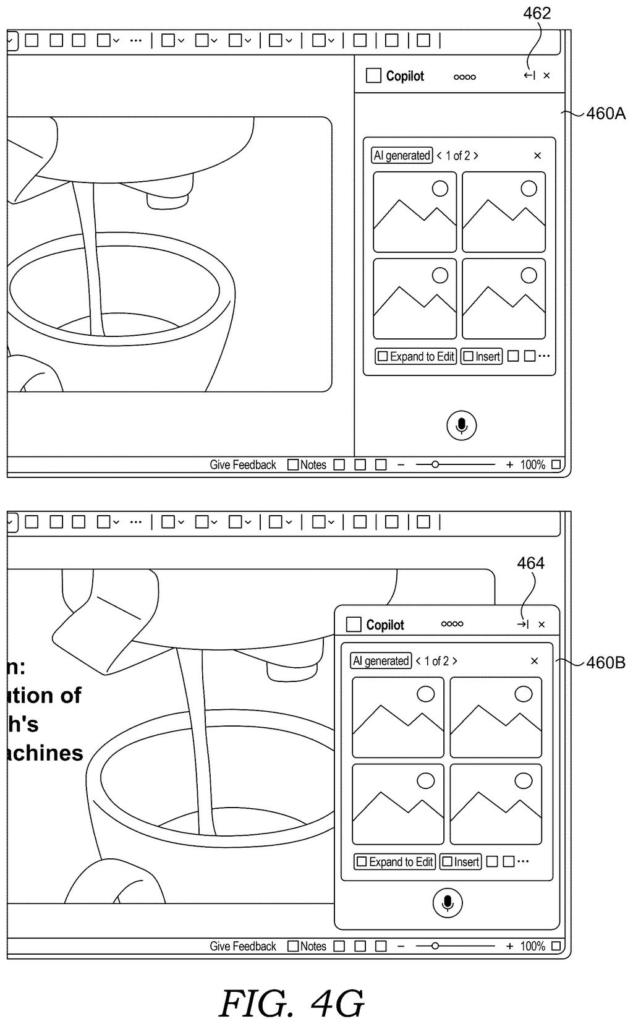
You can still drag it, resize it or dock it to the side, and it keeps adjusting as your work changes.
… determining an interface mode indicating a manner in which to present an artificial intelligence (AI) assistant user interface (UI) within the application based on the input data; determining a placement for presenting the AI assistant UI within the application based on the input data …
Translation: The system figures out how the AI helper should look and where it should sit on your screen.
How the helper picks its mode and its spot
The claims cover a system that gathers input data about the app you're using, then makes two decisions from it: an interface mode (how the helper presents itself) and a placement (where it sits). The input data has two flavors: context (which app, the document mode such as editing or read-only preview, and what you've been doing) and content (the text, images or selected data on screen).
The description lists four interface modes:
- Chat: typed back-and-forth conversation.
- Voice: you speak and it can answer aloud.
- Dialog: step-by-step guidance, like filling out a form.
- Contextual: inline suggestions tied to what's on screen.
The choice can come from simple rules or from a machine learning model (software that learns patterns from past behavior).
A second set of claims adds AI agents, meaning specialized helpers such as a designer, document, presentation, data analysis or app chat agent. The system picks one, writes a prompt (a written instruction for an AI model) containing the mode and context, and the agent sends back UI data: where to put the helper, what to show in it and which tasks to suggest.
A third claim describes the same helper appearing at one location with one set of content, then at a different location with different content once your activity changes. The description also gives a resizing example: if the panel shows ten design options and you shrink it, it might show five plus a link to see the rest.
… input data, such as context data and content data, associated with an application being executed at a user device is obtained. Thereafter, an interface mode indicating a manner in which to present an AI assistant UI within the application is determined …
Translation: It reads what you are doing in an app to decide how to show its digital helper.
What this means for Copilot-style AI in apps
If you use AI features inside documents, slides or spreadsheets, this is about where that help shows up. Instead of a fixed panel plus a separate floating tool, you would get one helper that sits beside the thing you selected, offers tasks that fit it (like suggest a formula column for a column of sales numbers) and gets out of the way when you type.
Microsoft's filing names its own Copilot as an example of an assistant this could apply to. It also says a single helper should waste less computer memory and processing than several panels running at once. It is a patent application, so nothing here says it will ship. Still, it shows how much attention goes to where AI sits on your screen, as well as what it can do.
Microsoft's 614th filing in our Microsoft coverage since May adds to a run that includes keeping chat visible in small meetings and labeling AI-made images and text.
The problem is small and familiar. Anyone who has had an AI panel eat a third of the screen, or hunted for the button that opens it, knows the annoyance. Microsoft's filing adds a second motive: making people notice AI features they haven't tried yet, like summaries.
The fix fits the size of the problem. Moving a helper around based on the app and your selection is a sensible, modest idea, and the claims are broad: pick a mode, pick a spot, show it. The risk is a screen that keeps shifting, since a helper that jumps around could annoy more than one that stays put.
Whether it earns its keep depends on how well it guesses, and the filing says only that rules or a model will do the picking, with no results on how good the guesses are. Treat it as a routine, useful design tweak with a built-in sales pitch for AI features.
Get our take in your Top Stories
Liked this breakdown? Add Patentlyze as a preferred source on Google, and our plain-English take shows up more often in your Top Stories the next time Microsoft patent news breaks.
There are more where this came from
We read every patent application Big Tech publishes and send you the ones worth knowing. Plain English, free, every week.
The drawings
20 drawing sheets from US 2026/0349753 A1 · click any drawing to enlarge


Show the other 12 sheets


Want this weekly breakdown for a company we don't cover? Patentlyze Pro →
Be the first to weigh in