Get the newsletter
Apple · AR / VR · Filed May 8, 2026 · USPTO published Nov 19, 2026 · This week's release

Apple Patents a Headset Control Panel for Changing Your Virtual Surroundings and Volume

Apple's patent application puts the dials for your virtual world, like how much of it surrounds you and what time of day it is, in the same panel as everyday switches like volume and notifications. One input opens it all.
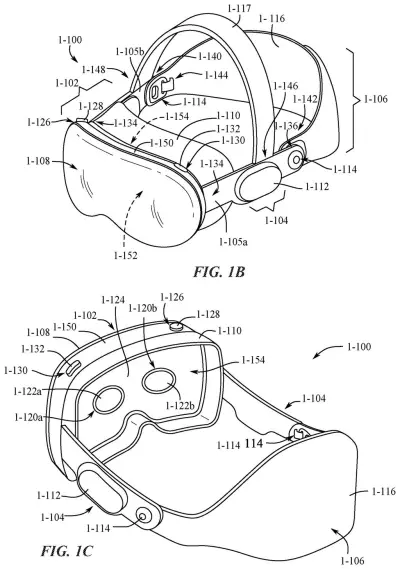
An Apple headset viewed from the front and back, featuring external glass, built-in lenses, and buttons to control the virtual environment. Drawing from patent filing US 2026/0367750 A1.
An Apple headset viewed from the front and back, featuring external glass, built-in lenses, and buttons to control the virtual environment.All 68 drawings ↓
Publication number
US 2026/0367750 A1(US20260367750A1)
Applicant
Apple Inc.
Filed · Published
May 8, 2026 · Nov 19, 2026
Inventors
Matan STAUBER, Stephen O. LEMAY, Zoey C. TAYLOR
Status when we published
Waiting for an examiner
Document
28 claims
US classification
715/718
Parent application
Claims priority from a provisional application 63808178 (filed May 19, 2025)

What Apple's headset control panel does

You're wearing a headset and a virtual scene fills most of your view. It's a bit too bright, a notification just buzzed, and one app is far louder than the rest. Fixing all of that today could mean hunting through several menus.

Apple's patent application describes a single control panel that opens with one input and puts everything in reach. It includes a scene control for the virtual world you're in: how much of it surrounds you, how loud it is, even the time of day. Next to it sit the everyday controls: media playback, notifications, search, and volume.

Select the volume control and it expands into separate sliders for each app, so you can quiet the noisy one without muting everything else.

From the filing · CLAIM 1
an immersive environment control user interface element configured to control one or more environment parameters of an immersive environment of the computer system …

Translation: A menu button lets you adjust your virtual surroundings.

How the panel groups scene and system controls

The claims cover a control panel that appears when you make an input asking for it (the filing lists gaze, hand gestures, buttons and dials as possible inputs). The panel shows two things at once: an element for adjusting the headset's immersive environment (a virtual scene that replaces some or all of the real room you see) and a set of ordinary system controls.

The scene element can include:

  • An immersion control for how much of your view the virtual scene covers. The description gives examples of 33%, 66% and 100% of the field of view.
  • A volume control for the scene's own audio.
  • A time-of-day control that changes how the scene looks.
  • A way to switch to a different scene, with a depth-effect preview of the one in use.

The system controls can include media playback, system volume, search, notifications with a focus mode (a setting that decides which alerts get through), a control for connecting to another computer and showing its screen in the headset, and a spatial tracking setting (a setting for how the device tracks space). One twist: if an app is showing its own immersive content when you open the panel, the scene element controls that app's settings instead.

The layout is adjustable. You can rearrange and scroll the elements, and the panel can reopen in the arrangement you left if you return within a set amount of time. Expanding the system volume control shows separate volume controls for different apps.

From the filing · THE ABSTRACT
… a volume control user interface that optionally includes a first volume control for controlling a volume level a first application in response to an input that corresponds to a request to expand a system volume control element …

Translation: Expanding the volume menu lets you change the sound level for a specific app.

Why one panel matters for wearing a headset

A headset covers your eyes, so a clumsy menu is more annoying than on a phone. Putting scene settings and everyday controls in one panel means you can dim the world around you, quiet one app, and silence notifications without leaving what you're doing. The filing says the aim is fewer inputs and less wasted battery.

It also shows how the company thinks about a virtual scene: as a setting you adjust as casually as volume. The per-app volume sliders matter on their own too, since a game, a video and a call can all be running at once and you may want only one of them louder.

This is the 139th Apple filing we've tracked on our Apple AR glasses work since May, adding to work like friend avatar rooms and private headset screen copy.

Source: US 2026/0367750 A1 at the USPTO (PDF). Full patent text and figures are in the official publication.

Get our take in your Top Stories

Liked this breakdown? Add Patentlyze as a preferred source on Google, and our plain-English take shows up more often in your Top Stories the next time Apple patent news breaks.

There are more where this came from

We read every patent application Big Tech publishes and send you the ones worth knowing. Plain English, free, every week.

The drawings · 68 sheets

68 drawing sheets from US 2026/0367750 A1 · click any drawing to enlarge

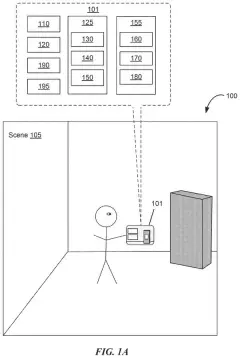
A person using a mixed reality device in a room, drawing sheet 1 from US 2026/0367750 A1
Sheet 1 A person using a mixed reality device in a room
Front and inner views of the headset hardware, drawing sheet 2 from US 2026/0367750 A1
Sheet 2 Front and inner views of the headset hardware
How the head strap and face cushion detach, drawing sheet 3 from US 2026/0367750 A1
Sheet 3 How the head strap and face cushion detach
Internal parts and screen assemblies inside the frame, drawing sheet 4 from US 2026/0367750 A1
Sheet 4 Internal parts and screen assemblies inside the frame
Disassembled view with dual display lenses and electronics, drawing sheet 5 from US 2026/0367750 A1
Sheet 5 Disassembled view with dual display lenses and electronics
Layered outward-facing screen that shows your eyes, drawing sheet 6 from US 2026/0367750 A1
Sheet 6 Layered outward-facing screen that shows your eyes
Detailed breakdown of the internal sensory components, drawing sheet 7 from US 2026/0367750 A1
Sheet 7 Detailed breakdown of the internal sensory components
Cameras and sensors positioned around the front visor, drawing sheet 8 from US 2026/0367750 A1
Sheet 8 Cameras and sensors positioned around the front visor
Show the other 52 sheets
Sensor and camera positions inside the headset frame, drawing sheet 9 from US 2026/0367750 A1
Sheet 9 Sensor and camera positions inside the headset frame
Internal motorized mounts that adjust display lenses, drawing sheet 10 from US 2026/0367750 A1
Sheet 10 Internal motorized mounts that adjust display lenses
Close-up views of a lens and display housing, drawing sheet 11 from US 2026/0367750 A1
Sheet 11 Close-up views of a lens and display housing
Main computer chips that run gaze and hand tracking, drawing sheet 12 from US 2026/0367750 A1
Sheet 12 Main computer chips that run gaze and hand tracking
Display hardware and sensors that generate virtual scenes, drawing sheet 13 from US 2026/0367750 A1
Sheet 13 Display hardware and sensors that generate virtual scenes
Basic steps an app takes to request system data, drawing sheet 14 from US 2026/0367750 A1
Sheet 14 Basic steps an app takes to request system data
Software parts that connect apps to the headset system, drawing sheet 15 from US 2026/0367750 A1
Sheet 15 Software parts that connect apps to the headset system
Flow of data requests between an app and the system, drawing sheet 16 from US 2026/0367750 A1
Sheet 16 Flow of data requests between an app and the system
Cameras tracking hand shapes to recognize gestures, drawing sheet 17 from US 2026/0367750 A1
Sheet 17 Cameras tracking hand shapes to recognize gestures
Sensors inside a headset tracking where you look, drawing sheet 18 from US 2026/0367750 A1
Sheet 18 Sensors inside a headset tracking where you look
How the headset confirms and follows pupil position, drawing sheet 19 from US 2026/0367750 A1
Sheet 19 How the headset confirms and follows pupil position
Looking at a virtual world inside the headset, drawing sheet 20 from US 2026/0367750 A1
Sheet 20 Looking at a virtual world inside the headset
Pinching to reveal a quick status widget, drawing sheet 21 from US 2026/0367750 A1
Sheet 21 Pinching to reveal a quick status widget
Opening a full control panel with a gesture, drawing sheet 22 from US 2026/0367750 A1
Sheet 22 Opening a full control panel with a gesture
Placing the control dashboard at a fixed distance, drawing sheet 23 from US 2026/0367750 A1
Sheet 23 Placing the control dashboard at a fixed distance
Dimming the background scene behind the control panel, drawing sheet 24 from US 2026/0367750 A1
Sheet 24 Dimming the background scene behind the control panel
Floating control widgets shown against a virtual beach background, drawing sheet 25 from US 2026/0367750 A1
Sheet 25 Floating control widgets shown against a virtual beach background
Switching the virtual background from a beach to mountains, drawing sheet 26 from US 2026/0367750 A1
Sheet 26 Switching the virtual background from a beach to mountains
Expanding the center tile reveals detailed spatial audio controls, drawing sheet 27 from US 2026/0367750 A1
Sheet 27 Expanding the center tile reveals detailed spatial audio controls
Pulling the notification panel forward brings recent alerts into view, drawing sheet 28 from US 2026/0367750 A1
Sheet 28 Pulling the notification panel forward brings recent alerts into view
Pinching in the air opens an app search bar, drawing sheet 29 from US 2026/0367750 A1
Sheet 29 Pinching in the air opens an app search bar
Editing mode displays delete buttons and an add widget button, drawing sheet 30 from US 2026/0367750 A1
Sheet 30 Editing mode displays delete buttons and an add widget button
Rearranged widgets after customizing the control panel layout, drawing sheet 31 from US 2026/0367750 A1
Sheet 31 Rearranged widgets after customizing the control panel layout
Tilting a single widget into a deeper 3D angle, drawing sheet 32 from US 2026/0367750 A1
Sheet 32 Tilting a single widget into a deeper 3D angle
A headset control panel showing media, settings, and notifications, drawing sheet 33 from US 2026/0367750 A1
Sheet 33 A headset control panel showing media, settings, and notifications
Edges of adjacent widget cards appear on the panel sides, drawing sheet 34 from US 2026/0367750 A1
Sheet 34 Edges of adjacent widget cards appear on the panel sides
Selecting the environment card using a pinch gesture, drawing sheet 35 from US 2026/0367750 A1
Sheet 35 Selecting the environment card using a pinch gesture
Swiping across the floating cards to reveal more controls, drawing sheet 36 from US 2026/0367750 A1
Sheet 36 Swiping across the floating cards to reveal more controls
Pinching to select another panel card after scrolling, drawing sheet 37 from US 2026/0367750 A1
Sheet 37 Pinching to select another panel card after scrolling
Looking down to summon a compact status bar, drawing sheet 38 from US 2026/0367750 A1
Sheet 38 Looking down to summon a compact status bar
Opening the compact status bar during a video call, drawing sheet 39 from US 2026/0367750 A1
Sheet 39 Opening the compact status bar during a video call
Expanding the control panel to show active call options, drawing sheet 40 from US 2026/0367750 A1
Sheet 40 Expanding the control panel to show active call options
Looking at slides inside an immersive room, drawing sheet 41 from US 2026/0367750 A1
Sheet 41 Looking at slides inside an immersive room
Pinching your fingers to summon a quick status bar, drawing sheet 42 from US 2026/0367750 A1
Sheet 42 Pinching your fingers to summon a quick status bar
Expanding the status bar into full room controls, drawing sheet 43 from US 2026/0367750 A1
Sheet 43 Expanding the status bar into full room controls
Opening a compact control panel over the screen, drawing sheet 44 from US 2026/0367750 A1
Sheet 44 Opening a compact control panel over the screen
How the headset responds to a request for controls, drawing sheet 45 from US 2026/0367750 A1
Sheet 45 How the headset responds to a request for controls
Selecting an audio widget with a pinch gesture, drawing sheet 46 from US 2026/0367750 A1
Sheet 46 Selecting an audio widget with a pinch gesture
Audio controls popping out ahead of background panels, drawing sheet 47 from US 2026/0367750 A1
Sheet 47 Audio controls popping out ahead of background panels
Dragging to adjust sound levels across different apps, drawing sheet 48 from US 2026/0367750 A1
Sheet 48 Dragging to adjust sound levels across different apps
An audio menu balances volume across apps, drawing sheet 49 from US 2026/0367750 A1
Sheet 49 An audio menu balances volume across apps
Pinching and dragging your hand adjusts individual audio sliders, drawing sheet 50 from US 2026/0367750 A1
Sheet 50 Pinching and dragging your hand adjusts individual audio sliders
Spatial audio lets you place sound in virtual space, drawing sheet 51 from US 2026/0367750 A1
Sheet 51 Spatial audio lets you place sound in virtual space
Closing an app removes its audio source, drawing sheet 52 from US 2026/0367750 A1
Sheet 52 Closing an app removes its audio source
Closing one app removes its controls from the audio menu, drawing sheet 53 from US 2026/0367750 A1
Sheet 53 Closing one app removes its controls from the audio menu
Selecting a new app opens its window and sound settings, drawing sheet 54 from US 2026/0367750 A1
Sheet 54 Selecting a new app opens its window and sound settings
Opening a game adds its slider to the audio menu, drawing sheet 55 from US 2026/0367750 A1
Sheet 55 Opening a game adds its slider to the audio menu
Focusing on another open window updates the active controls, drawing sheet 56 from US 2026/0367750 A1
Sheet 56 Focusing on another open window updates the active controls
An audio menu with sliders for individual apps, drawing sheet 57 from US 2026/0367750 A1
Sheet 57 An audio menu with sliders for individual apps
Pinching to dismiss the audio menu, drawing sheet 58 from US 2026/0367750 A1
Sheet 58 Pinching to dismiss the audio menu
Switching audio output to a different connected device, drawing sheet 59 from US 2026/0367750 A1
Sheet 59 Switching audio output to a different connected device
Closing the audio panel with a hand pinch, drawing sheet 60 from US 2026/0367750 A1
Sheet 60 Closing the audio panel with a hand pinch

Sheets 61 to 68 are in the full USPTO filing.

Patent filing page

Watchlists this filing belongs to

All watchlists →
Reader comments

No comments yet

Start the discussion

Real name or a handle, either is fine. Comments are read by a person before they appear, so allow a little time. Keep it about the filing.