Get the newsletter
Apple · Software · Filed Apr 29, 2026 · USPTO published Nov 12, 2026 · This week's release

Apple Patents Tapping a Photo of Your Room to Control Its Lights

Apple's patent turns a photo of your bedroom into the control panel for your lights: tap the lamp in the picture and the real lamp switches on. The phone can even work out which of several identical bulbs is which by flipping them on and off and watching the photo.
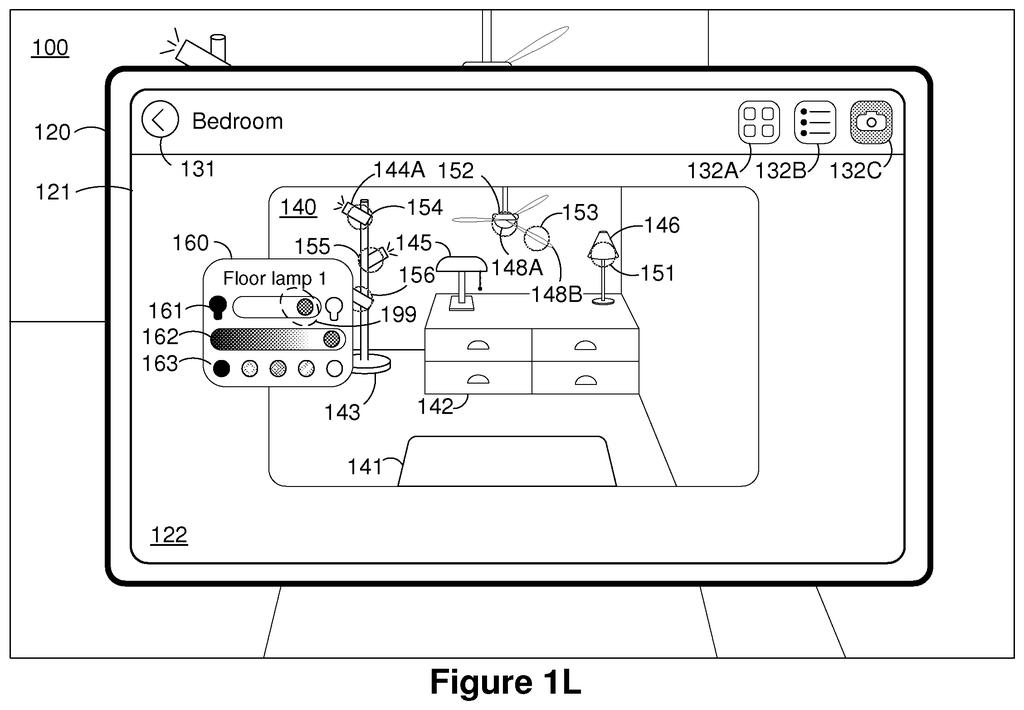
A tablet screen displaying a photo of a bedroom with interactive sliders and buttons to adjust the brightness and color of an individual lamp. Drawing from patent filing US 2026/0358778 A1.
A tablet screen displaying a photo of a bedroom with interactive sliders and buttons to adjust the brightness and color of an individual lamp.All 42 drawings ↓
Publication number
US 2026/0358778 A1(US20260358778A1)
Applicant
Apple Inc.
Filed · Published
Apr 29, 2026 · Nov 12, 2026
Inventors
Yutaka Yokokawa, Amrutha Hakkare Arunachala, Dimitris Ladopoulos, Magnus H. Johnson, Mahdi Azmandian
Status when we published
Waiting for an examiner
Document
20 claims
US classification
340/4.3
Parent application
Claims priority from a provisional application 63800609 (filed May 6, 2025)

What Apple's photo-based home remote does

Imagine you're lying in bed and want to turn off the lamp across the room, but your phone lists "Lamp 1," "Lamp 2," and "Lightbulb 3," and you have no idea which is which. Apple's patent swaps that list for a photo of the room itself. You tap the lamp in the picture, and the lamp responds.

You set it up once. Snap a photo (or let the phone collect pictures as you walk around), then mark which spot in the picture matches which gadget. The phone saves the photo and those links, so the photo keeps working later, even when you're in a different room.

The clever part is for lookalike gadgets. Four identical ceiling lights are hard to tell apart, so the phone can switch each one on and off, watch the picture for the change, and match them up on its own.

From the filing · CLAIM 1
obtaining an image of a physical environment including a plurality of objects; generating a respective plurality of associations between the plurality of objects and a plurality of portions of the image of the physical environment; …

Translation: The system takes a picture of a room and links different parts of that photo to the items inside the space.

How the app learns which light is which

The claims cover a method run on a device with a display, memory and processors. It gets an image of a physical space with several objects in it, then builds associations (saved links) between each object and a portion of the image, meaning a set of pixels. The image and the links are stored in memory, so they survive a restart or leaving the room.

The device then shows the image. When you tap a portion, the linked object changes state, such as a light turning on or changing color. That can mean sending a command right away or showing controls for on/off, brightness and color. Dragging a finger across several marked spots selects several lights at once.

The filing describes three ways to make the links:

  • You tap a spot in the photo and pick the device it belongs to.
  • The app compares the photo against a stored object model (pictures or a 3D model) of the gadget.
  • In a "dynamic" mode, the app sends on, off or color commands and watches for a change in brightness, color, motion or sound.

The photo can come from the camera, the camera roll, or pictures the phone captures on its own, then picks from or stitches together. A marked spot can also sit away from the device, like a wall switch or a smart plug feeding a lamp. After a change, the app may show an updated image, including one edited with generative AI so the lamp looks lit.

From the filing · THE ABSTRACT
… in response to receiving user input directed to a particular portion of the image of the physical environment of the plurality of portions of the image of the physical environment, causing a change in state of a particular object …

Translation: When you tap a specific spot on the photo, it changes the status of the item located in that part of the room.

What this means for your smart home apps

The practical win is naming. Smart home apps usually list gadgets by name, and a house with several similar bulbs ends up with labels like "Light 3" that nobody remembers. A photo of the room gives you a visual cue instead. The filing notes you can use the saved picture from a different room, for example to switch a set of outdoor lights from inside without recalling which numbered light is where.

The self-matching step could also cut setup effort in rooms full of identical fixtures. The filing lists a watch, phone, tablet, laptop or head-mounted device as possible hosts, so the same tap-the-picture idea could show up on whatever screen you have in hand. It remains a patent application, and nothing in it says whether it will ship.

Apple's 669th filing in our Apple coverage since May follows patents like sharing display settings across devices and a head-tilt muting headset.

Source: US 2026/0358778 A1 at the USPTO (PDF). Full patent text and figures are in the official publication.

Get our take in your Top Stories

Liked this breakdown? Add Patentlyze as a preferred source on Google, and our plain-English take shows up more often in your Top Stories the next time Apple patent news breaks.

There are more where this came from

We read every patent application Big Tech publishes and send you the ones worth knowing. Plain English, free, every week.

The drawings · 42 sheets

42 drawing sheets from US 2026/0358778 A1 · click any drawing to enlarge

A bedroom filled with smart lights and appliances, drawing sheet 1 from US 2026/0358778 A1
Sheet 1 A bedroom filled with smart lights and appliances
Opening a smart home app on a tablet, drawing sheet 2 from US 2026/0358778 A1
Sheet 2 Opening a smart home app on a tablet
Viewing all connected bedroom devices as buttons, drawing sheet 3 from US 2026/0358778 A1
Sheet 3 Viewing all connected bedroom devices as buttons
Prompting the user to set up a photo dashboard, drawing sheet 4 from US 2026/0358778 A1
Sheet 4 Prompting the user to set up a photo dashboard
Choosing how to add a bedroom photo, drawing sheet 5 from US 2026/0358778 A1
Sheet 5 Choosing how to add a bedroom photo
Taking a fresh picture of the room, drawing sheet 6 from US 2026/0358778 A1
Sheet 6 Taking a fresh picture of the room
Tapping the top light to link its control, drawing sheet 7 from US 2026/0358778 A1
Sheet 7 Tapping the top light to link its control
Linking a second light fixture on the photo, drawing sheet 8 from US 2026/0358778 A1
Sheet 8 Linking a second light fixture on the photo
Show the other 34 sheets
Selecting an anchor spot on a floor lamp, drawing sheet 9 from US 2026/0358778 A1
Sheet 9 Selecting an anchor spot on a floor lamp
Finishing setup of the photo control screen, drawing sheet 10 from US 2026/0358778 A1
Sheet 10 Finishing setup of the photo control screen
Tapping an anchor spot on a bedroom lamp, drawing sheet 11 from US 2026/0358778 A1
Sheet 11 Tapping an anchor spot on a bedroom lamp
Adjusting brightness using a pop-up lamp menu, drawing sheet 12 from US 2026/0358778 A1
Sheet 12 Adjusting brightness using a pop-up lamp menu
The lamp menu after turning down the light, drawing sheet 13 from US 2026/0358778 A1
Sheet 13 The lamp menu after turning down the light
How the physical room responds to the new light setting, drawing sheet 14 from US 2026/0358778 A1
Sheet 14 How the physical room responds to the new light setting
A living room with smart plugs, fan, and ceiling lights, drawing sheet 15 from US 2026/0358778 A1
Sheet 15 A living room with smart plugs, fan, and ceiling lights
Choosing the living room in the smart home app, drawing sheet 16 from US 2026/0358778 A1
Sheet 16 Choosing the living room in the smart home app
Tapping the camera button to create a visual room dashboard, drawing sheet 17 from US 2026/0358778 A1
Sheet 17 Tapping the camera button to create a visual room dashboard
Prompting setup for a living room photo dashboard, drawing sheet 18 from US 2026/0358778 A1
Sheet 18 Prompting setup for a living room photo dashboard
Choosing how to capture a room view for controls, drawing sheet 19 from US 2026/0358778 A1
Sheet 19 Choosing how to capture a room view for controls
Camera view showing living room devices ready for linking, drawing sheet 20 from US 2026/0358778 A1
Sheet 20 Camera view showing living room devices ready for linking
Detecting a ceiling light as the camera pans, drawing sheet 21 from US 2026/0358778 A1
Sheet 21 Detecting a ceiling light as the camera pans
Tagging another ceiling light automatically during the scan, drawing sheet 22 from US 2026/0358778 A1
Sheet 22 Tagging another ceiling light automatically during the scan
Identifying all four overhead lights in the room, drawing sheet 23 from US 2026/0358778 A1
Sheet 23 Identifying all four overhead lights in the room
Completed room dashboard showing all tagged devices ready for use, drawing sheet 24 from US 2026/0358778 A1
Sheet 24 Completed room dashboard showing all tagged devices ready for use
Selecting a bedroom opens its room controls, drawing sheet 25 from US 2026/0358778 A1
Sheet 25 Selecting a bedroom opens its room controls
Tapping a desk lamp in the bedroom photo, drawing sheet 26 from US 2026/0358778 A1
Sheet 26 Tapping a desk lamp in the bedroom photo
Controls pop up over the photo to adjust lighting, drawing sheet 27 from US 2026/0358778 A1
Sheet 27 Controls pop up over the photo to adjust lighting
Turning off the desk lamp from its pop up slider, drawing sheet 28 from US 2026/0358778 A1
Sheet 28 Turning off the desk lamp from its pop up slider
Picking which device to link from a nearby menu, drawing sheet 29 from US 2026/0358778 A1
Sheet 29 Picking which device to link from a nearby menu
Touching a banker lamp shown in the room picture, drawing sheet 30 from US 2026/0358778 A1
Sheet 30 Touching a banker lamp shown in the room picture
Adjusting the banker lamp switch on screen, drawing sheet 31 from US 2026/0358778 A1
Sheet 31 Adjusting the banker lamp switch on screen
Turning off the banker lamp with the slider switch, drawing sheet 32 from US 2026/0358778 A1
Sheet 32 Turning off the banker lamp with the slider switch
A bedroom updated with new smart lights and plugs, drawing sheet 33 from US 2026/0358778 A1
Sheet 33 A bedroom updated with new smart lights and plugs
An interactive living room photo showing controllable smart items, drawing sheet 34 from US 2026/0358778 A1
Sheet 34 An interactive living room photo showing controllable smart items
Selecting an antique floor lamp to reveal its outline, drawing sheet 35 from US 2026/0358778 A1
Sheet 35 Selecting an antique floor lamp to reveal its outline
Tapping ceiling light controls right over the room photo, drawing sheet 36 from US 2026/0358778 A1
Sheet 36 Tapping ceiling light controls right over the room photo
Opening a detailed brightness and color menu for recessed lights, drawing sheet 37 from US 2026/0358778 A1
Sheet 37 Opening a detailed brightness and color menu for recessed lights
Adjusting light color settings from the pop up card, drawing sheet 38 from US 2026/0358778 A1
Sheet 38 Adjusting light color settings from the pop up card
All ceiling bulbs lit after updating the group settings, drawing sheet 39 from US 2026/0358778 A1
Sheet 39 All ceiling bulbs lit after updating the group settings
The real room responding with illuminated ceiling lamps, drawing sheet 40 from US 2026/0358778 A1
Sheet 40 The real room responding with illuminated ceiling lamps
Controlling smart devices by tapping room photos, drawing sheet 41 from US 2026/0358778 A1
Sheet 41 Controlling smart devices by tapping room photos
Internal parts of the phone or headset managing room controls, drawing sheet 42 from US 2026/0358778 A1
Sheet 42 Internal parts of the phone or headset managing room controls
Patent filing page

Reader comments

No comments yet

Start the discussion

Real name or a handle, either is fine. Comments are read by a person before they appear, so allow a little time. Keep it about the filing.