Get the newsletter
Apple · AR / VR · Filed Mar 18, 2026 · USPTO published Nov 19, 2026 · This week's release

Apple Files Patent for Sending 3D Objects From Your Phone Into a Headset

Apple has filed a patent application for tapping a 3D object on one device and having it appear, ready to use, in someone's head-mounted display. The filing even covers what happens if the headset isn't on your face yet.
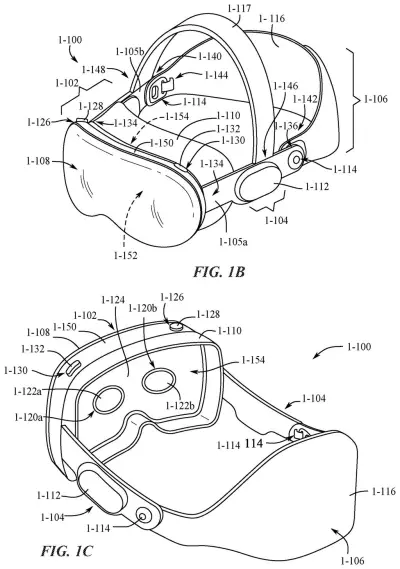
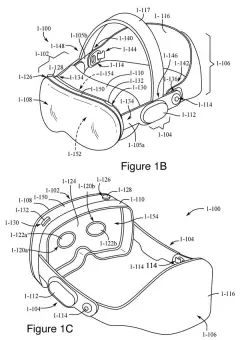
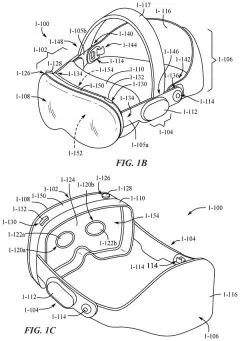
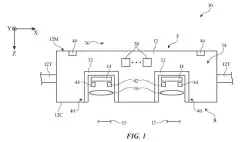
A headset viewed from the front and back, showing the visor, fabric band, and interior lenses that face the user eyes. Drawing from patent filing US 2026/0367748 A1.
A headset viewed from the front and back, showing the visor, fabric band, and interior lenses that face the user eyes.All 83 drawings ↓
Publication number
US 2026/0367748 A1(US20260367748A1)
Applicant
Apple Inc.
Filed · Published
Mar 18, 2026 · Nov 19, 2026
Inventors
David LUI, Xiao Jin YU, Lorena S. PAZMINO, Christopher D. MCKENZIE, Zoey C. TAYLOR, Jay MOON
Status when we published
Waiting for an examiner
Document
28 claims
US classification
715/748
Parent application
Claims priority from a provisional application 63805233 (filed May 13, 2025)

What Apple's phone-to-headset sharing does

You're looking at a 3D model of a sneaker on your iPhone, and you want a better look. Today that probably means saving a file, finding it again on another device, and opening it by hand. Apple's filing describes a shortcut: tap the object, and a copy shows up inside a headset.

The two copies stay linked. If you change the color on your phone, the headset version can update to match. If the headset isn't being worn, the object can wait and appear once someone puts it on.

The filing also covers the awkward parts of sharing. Your own devices skip the approval step, while a stranger's headset gets a request first. Your phone also remembers where you sent things last time, so it doesn't make you pick a destination again.

From the filing · CLAIM 1
… initiating a process to display a second representation of the three-dimensional virtual object via one or more head-mounted display generation components of a second computer system that is in communication with the first computer system …

Translation: This triggers the object to appear inside a connected headset.

How Apple's devices pass a 3D object along

The first claim covers a basic loop. A first device (say, a phone, tablet or computer) shows a 3D virtual object. When you interact with it, the device starts a process to show a second copy through a head-mounted display (a headset worn on the face) connected to a second computer system. While both copies are on screen, some information about how the object is being manipulated is kept in sync between them.

The dependent claims fill in the details:

  • Waiting for the headset: if the headset isn't being worn when you share, the object is shown once someone puts it on.
  • Choosing a destination: if you aren't already in a communication session with the other device, you pick from a list of available devices. Nearby devices that can't show the object are left off the list, and if you've shared before, the picker is skipped.
  • Approval: devices on different user accounts trigger an approval request, and devices on the same account don't.
  • Placement: the object can appear near a virtual screen already floating in the headset, or at a spot the sending device specifies. An app can also suggest how the object should be anchored in the room.

The claims also let you choose whether edits sync. Some edits on the headset can flow back to the phone, while moving the object around in the headset doesn't change the phone's view. Updates can be sent as only the changed pieces rather than the whole object. Certain types of interaction can be set to skip syncing entirely.

From the filing · THE ABSTRACT
… a first computer system and a second computer system share and display representations of a three-dimensional virtual object …

Translation: Two devices work together to show the same 3D item.

Why headset sharing needs fewer taps

The practical payoff is for anyone who owns a headset and other Apple gear. Looking at a 3D product, a design or a model on your phone and then pulling it into your space could take one tap instead of a file-transfer routine. That matters because a headset that's tedious to feed content gets used less.

The filing is also about the plumbing of a headset ecosystem: who gets asked for permission, which device shows up as an option, and what happens when the headset is sitting on a desk. Apple's interest in making headsets work with its other devices shows up in these small choices, and they decide whether sharing feels natural or fussy. This is a patent application, so it doesn't mean a feature is shipping.

That makes this Apple's 140th filing we've tracked in our AR glasses work watchlist since May, a list that includes applications like a headset control panel and miniature virtual rooms.

Source: US 2026/0367748 A1 at the USPTO (PDF). Full patent text and figures are in the official publication.

Get our take in your Top Stories

Liked this breakdown? Add Patentlyze as a preferred source on Google, and our plain-English take shows up more often in your Top Stories the next time Apple patent news breaks.

There are more where this came from

We read every patent application Big Tech publishes and send you the ones worth knowing. Plain English, free, every week.

The drawings · 83 sheets

83 drawing sheets from US 2026/0367748 A1 · click any drawing to enlarge

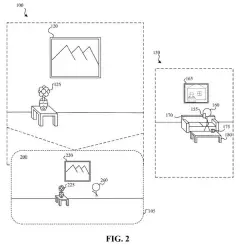
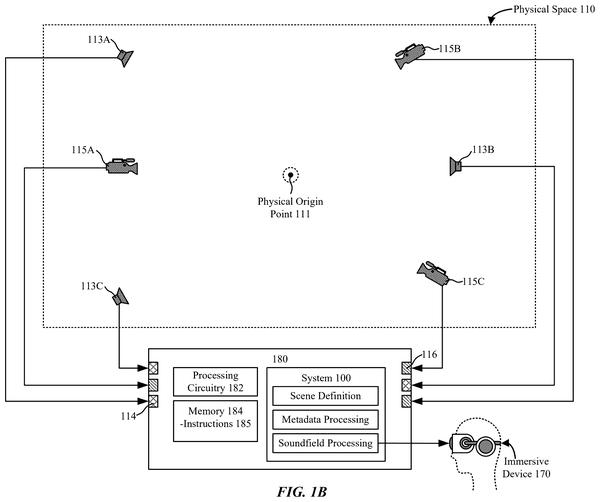
A room setup for testing mixed reality devices, drawing sheet 1 from US 2026/0367748 A1
Sheet 1 A room setup for testing mixed reality devices
Front and inner views of the headset, drawing sheet 2 from US 2026/0367748 A1
Sheet 2 Front and inner views of the headset
Modular parts of the headset including lenses and strap, drawing sheet 3 from US 2026/0367748 A1
Sheet 3 Modular parts of the headset including lenses and strap
Internal parts and chassis inside the headset frame, drawing sheet 4 from US 2026/0367748 A1
Sheet 4 Internal parts and chassis inside the headset frame
Detailed breakdown of the internal sensors and lenses, drawing sheet 5 from US 2026/0367748 A1
Sheet 5 Detailed breakdown of the internal sensors and lenses
Multi-layered front glass and exterior screen stack, drawing sheet 6 from US 2026/0367748 A1
Sheet 6 Multi-layered front glass and exterior screen stack
Complete component layout with the front screen assembly, drawing sheet 7 from US 2026/0367748 A1
Sheet 7 Complete component layout with the front screen assembly
Outward camera and sensor positions on the front glass, drawing sheet 8 from US 2026/0367748 A1
Sheet 8 Outward camera and sensor positions on the front glass
Show the other 52 sheets
Sensor and camera positions on the headset frame, drawing sheet 9 from US 2026/0367748 A1
Sheet 9 Sensor and camera positions on the headset frame
Internal displays and wiring inside the headset, drawing sheet 10 from US 2026/0367748 A1
Sheet 10 Internal displays and wiring inside the headset
Eye pieces and optical lenses fitted inside the visor, drawing sheet 11 from US 2026/0367748 A1
Sheet 11 Eye pieces and optical lenses fitted inside the visor
Computer chips that track hands, eyes, and movement, drawing sheet 12 from US 2026/0367748 A1
Sheet 12 Computer chips that track hands, eyes, and movement
Hardware and software that create visual displays, drawing sheet 13 from US 2026/0367748 A1
Sheet 13 Hardware and software that create visual displays
Basic steps apps follow to exchange system data, drawing sheet 14 from US 2026/0367748 A1
Sheet 14 Basic steps apps follow to exchange system data
Software bridges linking an app to the core operating system, drawing sheet 15 from US 2026/0367748 A1
Sheet 15 Software bridges linking an app to the core operating system
How apps send requests and receive responses, drawing sheet 16 from US 2026/0367748 A1
Sheet 16 How apps send requests and receive responses
Cameras tracking hand gestures to control virtual objects, drawing sheet 17 from US 2026/0367748 A1
Sheet 17 Cameras tracking hand gestures to control virtual objects
Sensors tracking your eye movements inside a headset, drawing sheet 18 from US 2026/0367748 A1
Sheet 18 Sensors tracking your eye movements inside a headset
Deciding whether eye reflections give an accurate gaze direction, drawing sheet 19 from US 2026/0367748 A1
Sheet 19 Deciding whether eye reflections give an accurate gaze direction
Selecting a 3D mug on a laptop to send elsewhere, drawing sheet 20 from US 2026/0367748 A1
Sheet 20 Selecting a 3D mug on a laptop to send elsewhere
Picking a nearby headset to receive the object using AirDrop, drawing sheet 21 from US 2026/0367748 A1
Sheet 21 Picking a nearby headset to receive the object using AirDrop
Scanning the room for extra devices to share content with, drawing sheet 22 from US 2026/0367748 A1
Sheet 22 Scanning the room for extra devices to share content with
Looking at the laptop screen through a worn headset, drawing sheet 23 from US 2026/0367748 A1
Sheet 23 Looking at the laptop screen through a worn headset
Floating a virtual sharing menu above the physical laptop, drawing sheet 24 from US 2026/0367748 A1
Sheet 24 Floating a virtual sharing menu above the physical laptop
Accepting an incoming 3D object inside a headset view, drawing sheet 25 from US 2026/0367748 A1
Sheet 25 Accepting an incoming 3D object inside a headset view
Connecting devices with a shared security code, drawing sheet 26 from US 2026/0367748 A1
Sheet 26 Connecting devices with a shared security code
Selecting the code entry prompt from headset settings, drawing sheet 27 from US 2026/0367748 A1
Sheet 27 Selecting the code entry prompt from headset settings
Typing the pairing passcode on a virtual keyboard, drawing sheet 28 from US 2026/0367748 A1
Sheet 28 Typing the pairing passcode on a virtual keyboard
Editing a 3D object from a laptop while previewing it, drawing sheet 29 from US 2026/0367748 A1
Sheet 29 Editing a 3D object from a laptop while previewing it
Clicking the share button to beam the updated model, drawing sheet 30 from US 2026/0367748 A1
Sheet 30 Clicking the share button to beam the updated model
Looking at the 3D mug resting on the physical desk, drawing sheet 31 from US 2026/0367748 A1
Sheet 31 Looking at the 3D mug resting on the physical desk
Gesturing with your hand to grab the virtual mug, drawing sheet 32 from US 2026/0367748 A1
Sheet 32 Gesturing with your hand to grab the virtual mug
Updating a 3D mug model across devices instantly, drawing sheet 33 from US 2026/0367748 A1
Sheet 33 Updating a 3D mug model across devices instantly
Viewing a virtual object right after wearing the headset, drawing sheet 34 from US 2026/0367748 A1
Sheet 34 Viewing a virtual object right after wearing the headset
How a computer and headset share 3D models, drawing sheet 35 from US 2026/0367748 A1
Sheet 35 How a computer and headset share 3D models
Selecting an immersive game option on a floating virtual screen, drawing sheet 36 from US 2026/0367748 A1
Sheet 36 Selecting an immersive game option on a floating virtual screen
Choosing display settings before entering an immersive view, drawing sheet 37 from US 2026/0367748 A1
Sheet 37 Choosing display settings before entering an immersive view
Launching a 3D game beside its menu window, drawing sheet 38 from US 2026/0367748 A1
Sheet 38 Launching a 3D game beside its menu window
Choosing game options beside an active 3D portal, drawing sheet 39 from US 2026/0367748 A1
Sheet 39 Choosing game options beside an active 3D portal
Customizing a character face inside the portal display window, drawing sheet 40 from US 2026/0367748 A1
Sheet 40 Customizing a character face inside the portal display window
Selecting an avatar inside a portal with a hand gesture, drawing sheet 41 from US 2026/0367748 A1
Sheet 41 Selecting an avatar inside a portal with a hand gesture
A game title bar pops up below the 3D portal, drawing sheet 42 from US 2026/0367748 A1
Sheet 42 A game title bar pops up below the 3D portal
Collapsing the 3D portal back into a flat virtual monitor, drawing sheet 43 from US 2026/0367748 A1
Sheet 43 Collapsing the 3D portal back into a flat virtual monitor
Stepping inside a video game menu through a circular portal, drawing sheet 44 from US 2026/0367748 A1
Sheet 44 Stepping inside a video game menu through a circular portal
Tapping a trackpad to select an onscreen tool, drawing sheet 45 from US 2026/0367748 A1
Sheet 45 Tapping a trackpad to select an onscreen tool
Dragging a virtual pencil using trackpad input, drawing sheet 46 from US 2026/0367748 A1
Sheet 46 Dragging a virtual pencil using trackpad input
Cutting a virtual pencil into pieces using direct hand gestures, drawing sheet 47 from US 2026/0367748 A1
Sheet 47 Cutting a virtual pencil into pieces using direct hand gestures
Pulling severed pencil pieces apart in 3D space, drawing sheet 48 from US 2026/0367748 A1
Sheet 48 Pulling severed pencil pieces apart in 3D space
Moving a virtual drawing tool with your hand, drawing sheet 49 from US 2026/0367748 A1
Sheet 49 Moving a virtual drawing tool with your hand
Releasing the virtual tool into a workspace window, drawing sheet 50 from US 2026/0367748 A1
Sheet 50 Releasing the virtual tool into a workspace window
Steps for popping 3D items out of a flat window, drawing sheet 51 from US 2026/0367748 A1
Sheet 51 Steps for popping 3D items out of a flat window
Tapping the share button in a phone browser, drawing sheet 52 from US 2026/0367748 A1
Sheet 52 Tapping the share button in a phone browser
Opening a nearby share menu while pulling down settings, drawing sheet 53 from US 2026/0367748 A1
Sheet 53 Opening a nearby share menu while pulling down settings
Searching for nearby people to start sharing, drawing sheet 54 from US 2026/0367748 A1
Sheet 54 Searching for nearby people to start sharing
Generating a six-digit passkey to connect devices, drawing sheet 55 from US 2026/0367748 A1
Sheet 55 Generating a six-digit passkey to connect devices
Entering the shared passkey on a second phone, drawing sheet 56 from US 2026/0367748 A1
Sheet 56 Entering the shared passkey on a second phone
Entering a numeric passcode to pair two nearby phones, drawing sheet 57 from US 2026/0367748 A1
Sheet 57 Entering a numeric passcode to pair two nearby phones
Confirmation screens showing the phones are connected, drawing sheet 58 from US 2026/0367748 A1
Sheet 58 Confirmation screens showing the phones are connected
Selecting AirDrop from the standard sharing menu, drawing sheet 59 from US 2026/0367748 A1
Sheet 59 Selecting AirDrop from the standard sharing menu
Picking a newly connected contact from the AirDrop list, drawing sheet 60 from US 2026/0367748 A1
Sheet 60 Picking a newly connected contact from the AirDrop list

Sheets 61 to 83 are in the full USPTO filing.

Patent filing page

Watchlists this filing belongs to

All watchlists →
Reader comments

No comments yet

Start the discussion

Real name or a handle, either is fine. Comments are read by a person before they appear, so allow a little time. Keep it about the filing.