Get the newsletter
Apple · Software · Filed Jul 27, 2026 · USPTO published Nov 19, 2026 · This week's release

Apple Files Patent to Split Camera Motion Alerts From Recording Settings

Deciding when a camera should buzz your phone and when it should save video are two separate choices. This Apple patent application builds a settings screen that keeps them apart.
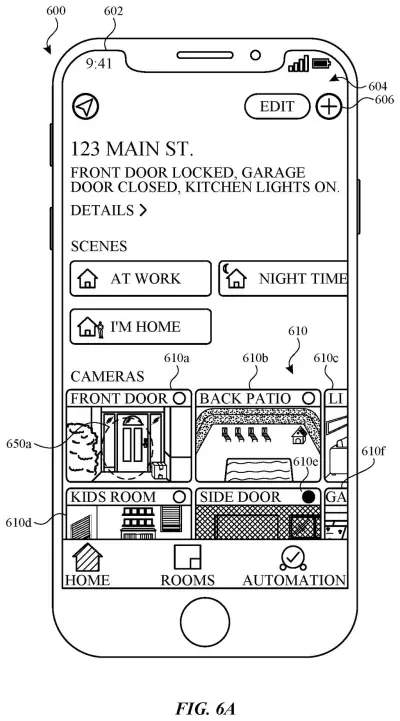
A smartphone displaying a smart home app with live security camera feeds and quick controls for household scenes. Drawing from patent filing US 2026/0370909 A1.
A smartphone displaying a smart home app with live security camera feeds and quick controls for household scenes.All 184 drawings ↓
Publication number
US 2026/0370909 A1(US20260370909A1)
Applicant
Apple Inc.
Filed · Published
Jul 27, 2026 · Nov 19, 2026
Inventors
Taylor G. CARRIGAN, Patrick L. COFFMAN, Christopher Patrick FOSS
Status when we published
Waiting for an examiner
Document
21 claims
US classification
386/241
Parent application
Continuation of 19/030,392 (filed Jan 17, 2025)(19030392)

What Apple's camera alert settings change

Every time you set up a new camera, you hit the same pair of questions: when should it record, and when should it buzz your phone? Most of us would like those to be separate choices. Apple's patent application describes a settings screen that treats them that way.

Once your phone learns about a camera, you can open its notifications settings and choose which kinds of motion should send you an alert. That choice works even if the camera isn't set to record. Recording has its own list of motion options, and changing one list leaves the other alone.

There's also a single on/off control for activity detection. Flip it off and the motion options disappear and the alerts stop. Flip it back on and they return.

From the filing · CLAIM 1
… transmitting information to update notifications settings of a configuration profile of the source of video data according to the first motion detection condition without transmitting information to update motion detection conditions associated with an operational state of the configuration profile of the source of video data.

Translation: This updates your alert preferences without changing how the camera actually records or operates.

How the phone updates alerts but not recording

The claims cover a phone, tablet or other device with a display that first receives data identifying a source of video data (in plain terms, it finds or is told about a camera). It then shows a notifications settings control, which turns on alerts from the camera regardless of what the camera is doing at that moment (its operational state, such as recording or not).

Tapping that control brings up a list of motion detection conditions, each with its own on-screen control. You pick one, and the device sends an update to the camera's configuration profile (the saved bundle of settings that tells the camera how to behave). The update changes only the notification settings. It leaves alone the motion rules that apply when the camera is recording.

The dependent claims add several variations:

  • Pick a second condition, and the camera sends an alert when either one is met.
  • Choose a recording state separately, which brings up its own motion options and updates only the recording settings.
  • Use an activity detection switch that hides the motion options and disables those conditions, then shows and re-enables them when switched back on.

The wider description covers more than the claims do: a live feed paired with a scrubber bar (a timeline strip for jumping through recorded clips), views from several cameras at once, and storage cleanup screens.

What this means for your camera alerts

For you, the payoff is control over noise. A camera that pings you about every movement is easy to mute and forget, so tuning alerts on their own matters. Because the alerts in these claims don't depend on whether the camera is recording, you could decide what gets your attention without also deciding what gets saved.

For Apple, this is interface work for phones and tablets that manage cameras. The text notes that a person can have several cameras at different locations. The same family also covers storage cleanup, multi-camera timelines and settings for different contexts, so this claim is one slice of a larger camera app design.

This is the 682nd Apple filing in our Apple coverage since May, adding to work like the health-risk video scenes patent and the face-lighting screen glow patent.

Source: US 2026/0370909 A1 at the USPTO (PDF). Full patent text and figures are in the official publication.

Get our take in your Top Stories

Liked this breakdown? Add Patentlyze as a preferred source on Google, and our plain-English take shows up more often in your Top Stories the next time Apple patent news breaks.

There are more where this came from

We read every patent application Big Tech publishes and send you the ones worth knowing. Plain English, free, every week.

The drawings · 184 sheets

184 drawing sheets from US 2026/0370909 A1 · click any drawing to enlarge

Hardware parts and apps running inside a smartphone, drawing sheet 1 from US 2026/0370909 A1
Sheet 1 Hardware parts and apps running inside a smartphone
Software parts that recognize and sort screen touches, drawing sheet 2 from US 2026/0370909 A1
Sheet 2 Software parts that recognize and sort screen touches
External sensors, buttons, and screen on a phone, drawing sheet 3 from US 2026/0370909 A1
Sheet 3 External sensors, buttons, and screen on a phone
Internal parts of a computer with a separate trackpad, drawing sheet 4 from US 2026/0370909 A1
Sheet 4 Internal parts of a computer with a separate trackpad
Home screen showing apps and status icons on a phone, drawing sheet 5 from US 2026/0370909 A1
Sheet 5 Home screen showing apps and status icons on a phone
Pinch gestures tracked on a separate touch surface, drawing sheet 6 from US 2026/0370909 A1
Sheet 6 Pinch gestures tracked on a separate touch surface
Front view of a smartwatch casing and display, drawing sheet 7 from US 2026/0370909 A1
Sheet 7 Front view of a smartwatch casing and display
Core sensors and processing chips inside a smartwatch, drawing sheet 8 from US 2026/0370909 A1
Sheet 8 Core sensors and processing chips inside a smartwatch
Show the other 52 sheets
Sensors measuring touch pressure at four corners of a display, drawing sheet 9 from US 2026/0370909 A1
Sheet 9 Sensors measuring touch pressure at four corners of a display
Calculating pressure and touch location from multiple screen sensors, drawing sheet 10 from US 2026/0370909 A1
Sheet 10 Calculating pressure and touch location from multiple screen sensors
Light trackpad tap selecting an app icon on a screen, drawing sheet 11 from US 2026/0370909 A1
Sheet 11 Light trackpad tap selecting an app icon on a screen
Pressing harder on the trackpad reveals a recent file, drawing sheet 12 from US 2026/0370909 A1
Sheet 12 Pressing harder on the trackpad reveals a recent file
Increasing trackpad pressure opens a second recent file, drawing sheet 13 from US 2026/0370909 A1
Sheet 13 Increasing trackpad pressure opens a second recent file
Maximum trackpad force reveals all recent files for the app, drawing sheet 14 from US 2026/0370909 A1
Sheet 14 Maximum trackpad force reveals all recent files for the app
Smart home dashboard showing live video feeds from multiple cameras, drawing sheet 15 from US 2026/0370909 A1
Sheet 15 Smart home dashboard showing live video feeds from multiple cameras
Fullscreen camera view with an interactive timeline of recorded clips, drawing sheet 16 from US 2026/0370909 A1
Sheet 16 Fullscreen camera view with an interactive timeline of recorded clips
Watching live camera video while browsing past recordings, drawing sheet 17 from US 2026/0370909 A1
Sheet 17 Watching live camera video while browsing past recordings
Playing a live doorbell stream as a visitor turns away, drawing sheet 18 from US 2026/0370909 A1
Sheet 18 Playing a live doorbell stream as a visitor turns away
Adding a newly recorded clip thumbnail directly into the timeline, drawing sheet 19 from US 2026/0370909 A1
Sheet 19 Adding a newly recorded clip thumbnail directly into the timeline
Tapping an older recorded event along the bottom scrubber bar, drawing sheet 20 from US 2026/0370909 A1
Sheet 20 Tapping an older recorded event along the bottom scrubber bar
Reviewing recorded footage using a top date selector, drawing sheet 21 from US 2026/0370909 A1
Sheet 21 Reviewing recorded footage using a top date selector
Scrubbing the timeline backward to find an earlier event, drawing sheet 22 from US 2026/0370909 A1
Sheet 22 Scrubbing the timeline backward to find an earlier event
Viewing a delivery clip recorded earlier that afternoon, drawing sheet 23 from US 2026/0370909 A1
Sheet 23 Viewing a delivery clip recorded earlier that afternoon
Picking an earlier calendar day to find older footage, drawing sheet 24 from US 2026/0370909 A1
Sheet 24 Picking an earlier calendar day to find older footage
Scrubbing backwards through recorded security video by date, drawing sheet 25 from US 2026/0370909 A1
Sheet 25 Scrubbing backwards through recorded security video by date
Tapping the share button on a selected video segment, drawing sheet 26 from US 2026/0370909 A1
Sheet 26 Tapping the share button on a selected video segment
Trimming handles appear around the chosen camera clip, drawing sheet 27 from US 2026/0370909 A1
Sheet 27 Trimming handles appear around the chosen camera clip
Dragging the start handle forward to cut early footage, drawing sheet 28 from US 2026/0370909 A1
Sheet 28 Dragging the start handle forward to cut early footage
Showing the newly adjusted start time of the clip, drawing sheet 29 from US 2026/0370909 A1
Sheet 29 Showing the newly adjusted start time of the clip
Selecting the end handle to trim trailing video frames, drawing sheet 30 from US 2026/0370909 A1
Sheet 30 Selecting the end handle to trim trailing video frames
Highlighting the final edited video range ready for export, drawing sheet 31 from US 2026/0370909 A1
Sheet 31 Highlighting the final edited video range ready for export
Exporting the shortened security clip to save or send, drawing sheet 32 from US 2026/0370909 A1
Sheet 32 Exporting the shortened security clip to save or send
Sharing a saved video clip directly from the player, drawing sheet 33 from US 2026/0370909 A1
Sheet 33 Sharing a saved video clip directly from the player
How tapping the timeline switches live video to recorded clips, drawing sheet 34 from US 2026/0370909 A1
Sheet 34 How tapping the timeline switches live video to recorded clips
Picking a specific recorded segment to view its recording time, drawing sheet 35 from US 2026/0370909 A1
Sheet 35 Picking a specific recorded segment to view its recording time
Returning to live camera feeds and trimming clips to share, drawing sheet 36 from US 2026/0370909 A1
Sheet 36 Returning to live camera feeds and trimming clips to share
Viewing a live feed with quick access to related controls, drawing sheet 37 from US 2026/0370909 A1
Sheet 37 Viewing a live feed with quick access to related controls
Bringing up smart accessories tied to the front door camera, drawing sheet 38 from US 2026/0370909 A1
Sheet 38 Bringing up smart accessories tied to the front door camera
Selecting another camera feed from the accessory menu, drawing sheet 39 from US 2026/0370909 A1
Sheet 39 Selecting another camera feed from the accessory menu
Switching the full screen viewer to a garage door camera, drawing sheet 40 from US 2026/0370909 A1
Sheet 40 Switching the full screen viewer to a garage door camera
Lock screen alert showing a camera motion event, drawing sheet 41 from US 2026/0370909 A1
Sheet 41 Lock screen alert showing a camera motion event
Tapping the motion alert to reveal related controls, drawing sheet 42 from US 2026/0370909 A1
Sheet 42 Tapping the motion alert to reveal related controls
Expanded notification with live video and smart home buttons, drawing sheet 43 from US 2026/0370909 A1
Sheet 43 Expanded notification with live video and smart home buttons
Selecting the live video feed option inside the alert, drawing sheet 44 from US 2026/0370909 A1
Sheet 44 Selecting the live video feed option inside the alert
Video updates directly inside the expanded notification card, drawing sheet 45 from US 2026/0370909 A1
Sheet 45 Video updates directly inside the expanded notification card
Action buttons to open doors or turn on lights, drawing sheet 46 from US 2026/0370909 A1
Sheet 46 Action buttons to open doors or turn on lights
How the phone links camera alerts to smart accessories, drawing sheet 47 from US 2026/0370909 A1
Sheet 47 How the phone links camera alerts to smart accessories
Overview dashboard displaying feeds from multiple home cameras, drawing sheet 48 from US 2026/0370909 A1
Sheet 48 Overview dashboard displaying feeds from multiple home cameras
Multi-camera grid view with a shared playback timeline below, drawing sheet 49 from US 2026/0370909 A1
Sheet 49 Multi-camera grid view with a shared playback timeline below
Tapping an earlier recorded event along the timeline, drawing sheet 50 from US 2026/0370909 A1
Sheet 50 Tapping an earlier recorded event along the timeline
Scrubbing past events while inactive cameras show no recording, drawing sheet 51 from US 2026/0370909 A1
Sheet 51 Scrubbing past events while inactive cameras show no recording
Swiping horizontally across the grid to reveal more cameras, drawing sheet 52 from US 2026/0370909 A1
Sheet 52 Swiping horizontally across the grid to reveal more cameras
Revealing another room camera after swiping the grid, drawing sheet 53 from US 2026/0370909 A1
Sheet 53 Revealing another room camera after swiping the grid
Dragging the timeline backward to jump to an older clip, drawing sheet 54 from US 2026/0370909 A1
Sheet 54 Dragging the timeline backward to jump to an older clip
Playing synchronized video across active cameras at a set time, drawing sheet 55 from US 2026/0370909 A1
Sheet 55 Playing synchronized video across active cameras at a set time
Selecting an office camera feed to bring up full details, drawing sheet 56 from US 2026/0370909 A1
Sheet 56 Selecting an office camera feed to bring up full details
Scrubbing across recorded camera footage on a calendar timeline, drawing sheet 57 from US 2026/0370909 A1
Sheet 57 Scrubbing across recorded camera footage on a calendar timeline
Switching multi-camera feeds to past snapshots when you scrub, drawing sheet 58 from US 2026/0370909 A1
Sheet 58 Switching multi-camera feeds to past snapshots when you scrub
Returning multiple camera views back to live video, drawing sheet 59 from US 2026/0370909 A1
Sheet 59 Returning multiple camera views back to live video
Enlarging a camera view by tapping or rotating the phone, drawing sheet 60 from US 2026/0370909 A1
Sheet 60 Enlarging a camera view by tapping or rotating the phone

Sheets 61 to 184 are in the full USPTO filing.

Patent filing page

Reader comments

No comments yet

Start the discussion

Real name or a handle, either is fine. Comments are read by a person before they appear, so allow a little time. Keep it about the filing.